
ThemeSettings
In this section, you can customize your theme's overall design and functionality, including colors, typography (fonts), layout options, buttons, product and collection cards, checkout and cart settings, social media links, newsletter pop-up, currency format, search behavior, and other global style preferences.
1. Colors
Color plays a vital role in creating an attractive, user-friendly, and accessible theme. A thoughtfully chosen color scheme not only strengthens a brand�s identity but also improves the overall shopping experience for customers. Use the color settings to define your brand�s primary and secondary colors. These selections will be applied consistently across global sections, including the header, footer, and other general areas of the theme.
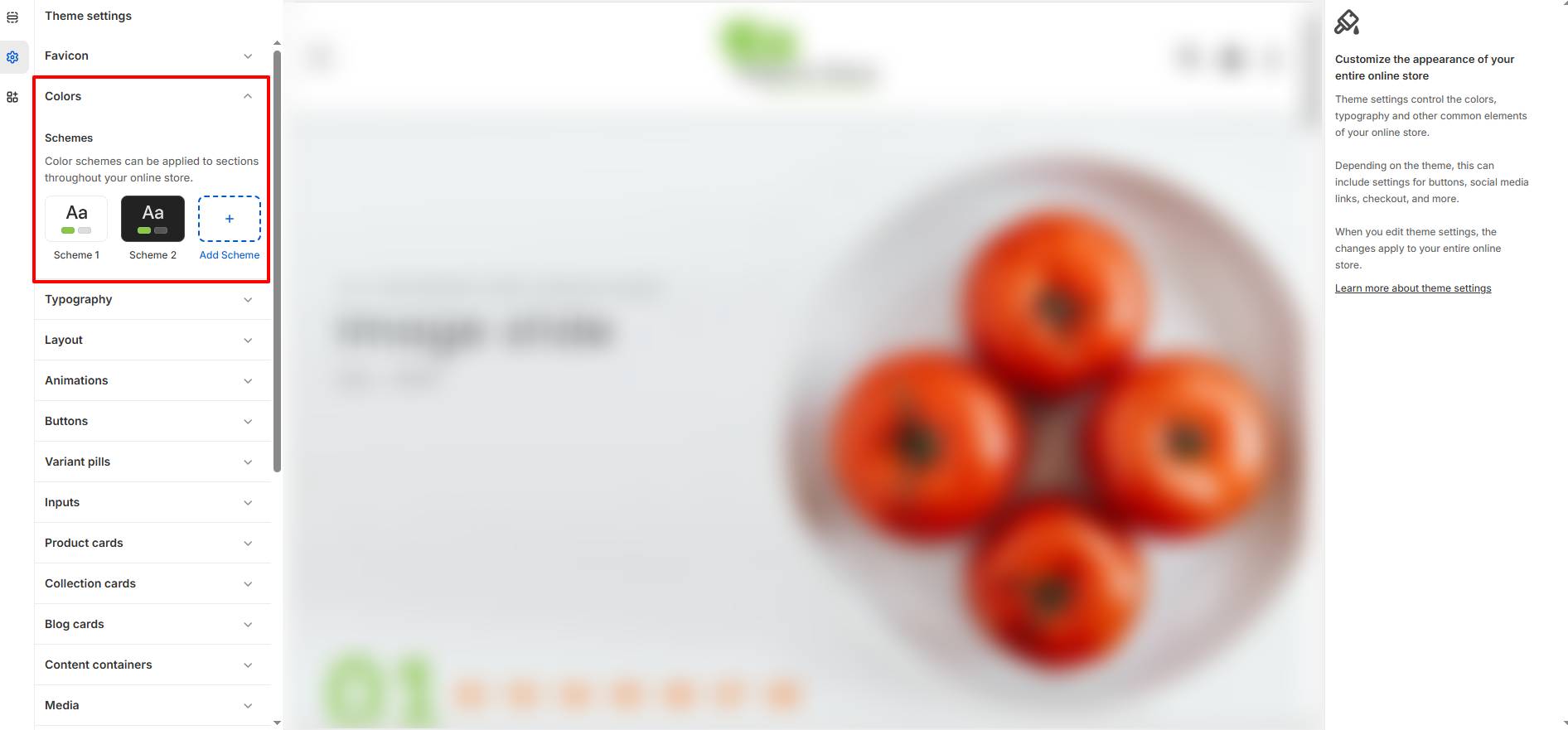
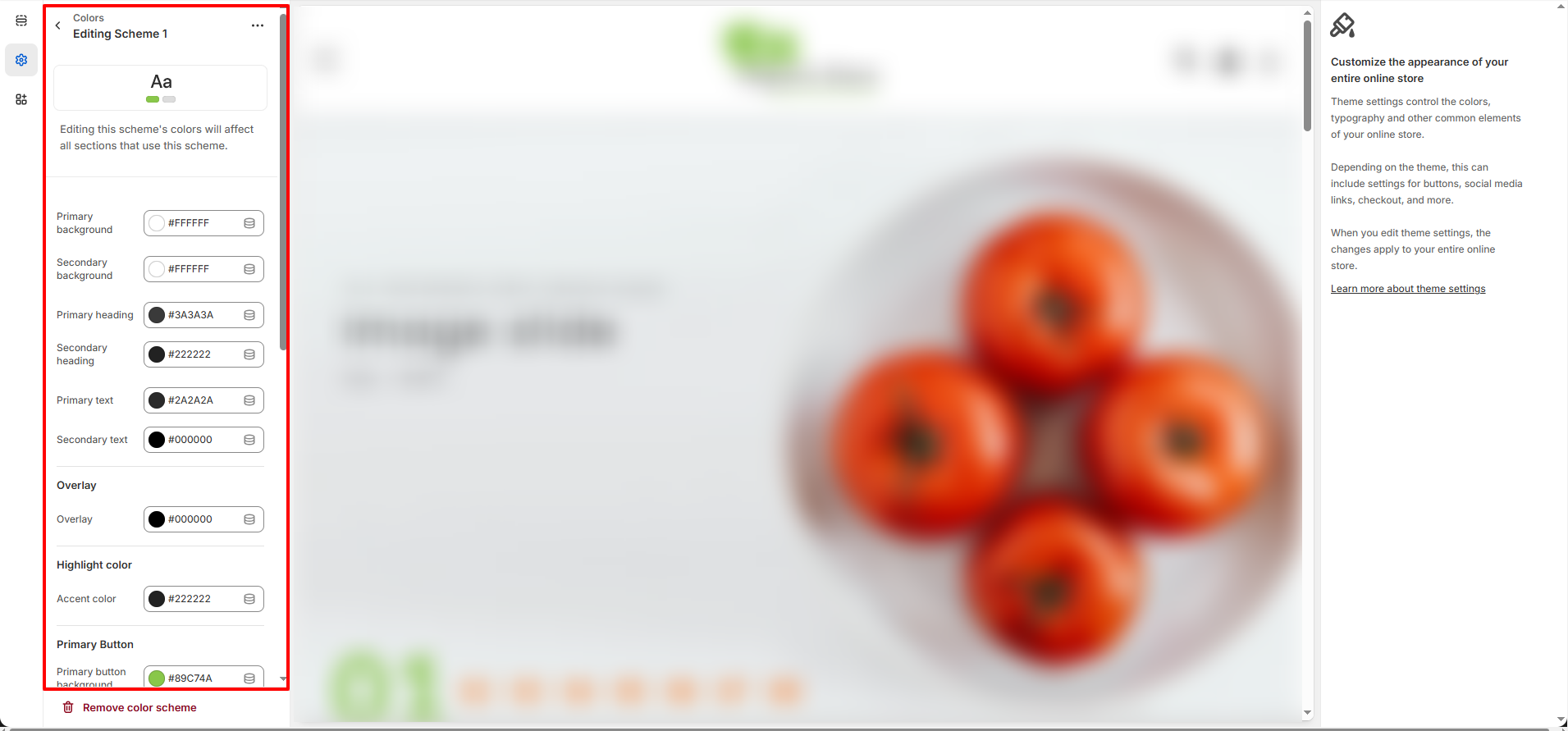
Customize Your Colors to Reflect Your Brand
To access these settings, go to Online Store >> Themes >> Customize >> Theme Settings >> Colors.
- Open the Theme Customizer.
- Click on the General Settings icon.
- Select the Colors option to modify your color preferences.
2. Typography
Your store�s typography plays a key role in shaping its overall style and ensuring content is easy to read. You can adjust both heading and body fonts to maintain a consistent and attractive design across your entire website.
Headings Font: Select a strong and eye-catching font for headings to highlight product names, section titles, and important messages. The chosen style should match your brand personality�whether it�s modern, sophisticated, fun, or traditional�while creating a clear visual structure throughout the site.
Body Font: Choose a simple and highly readable font for general content such as product descriptions, paragraphs, and buttons. The body font should pair well with the heading font and provide a smooth reading experience on all screen sizes and devices.
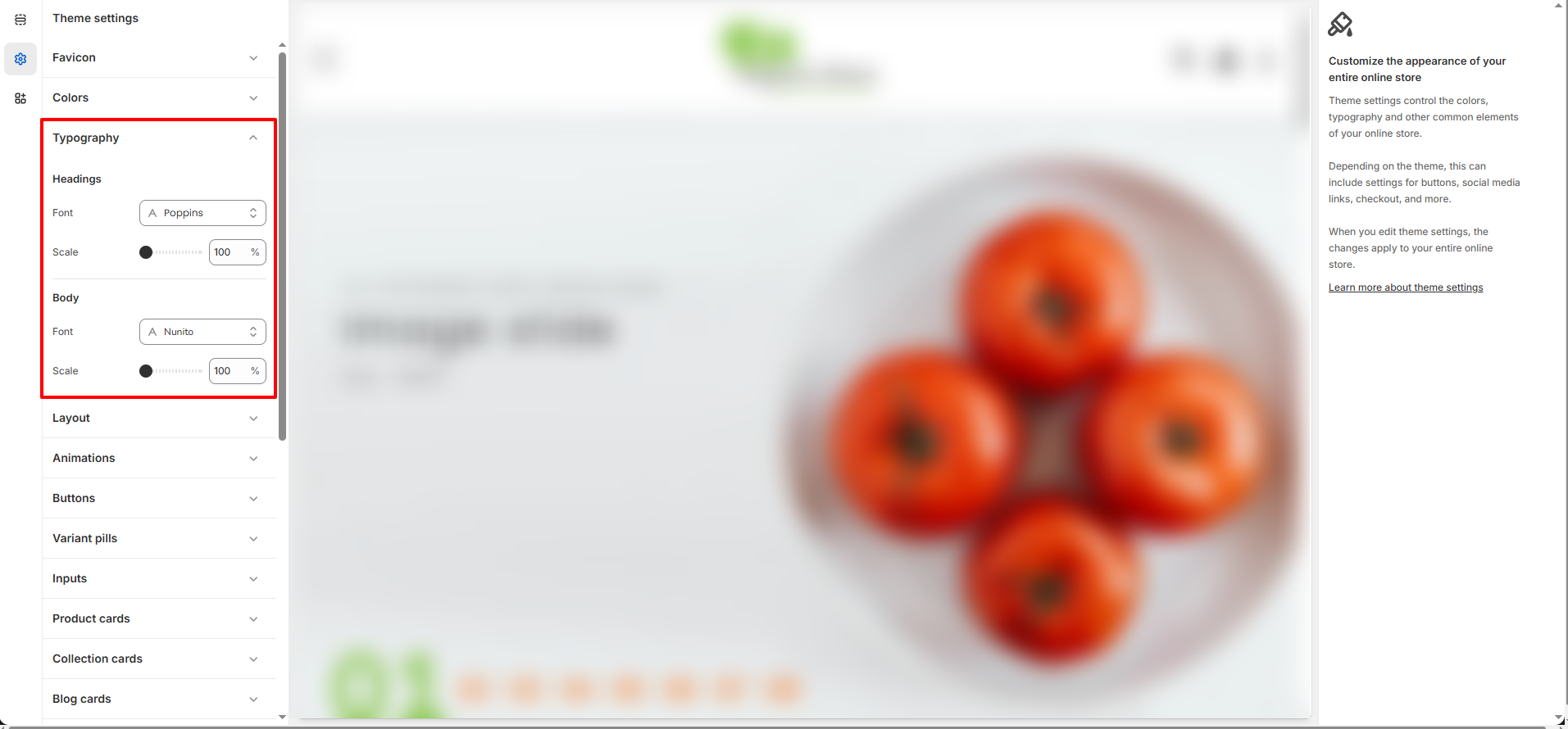
Customize Your Typography to Reflect Your Brand Style
To access these settings, go to Online Store >> Themes >> Customize >> Theme Settings >> Typography.
- Go to the Theme Customizer from your Shopify admin.
- Select the General Settings panel.
- Click on Typography to update your font styles.
3. Layout settings
Emoll provides flexible layout options to manage your store�s overall structure.
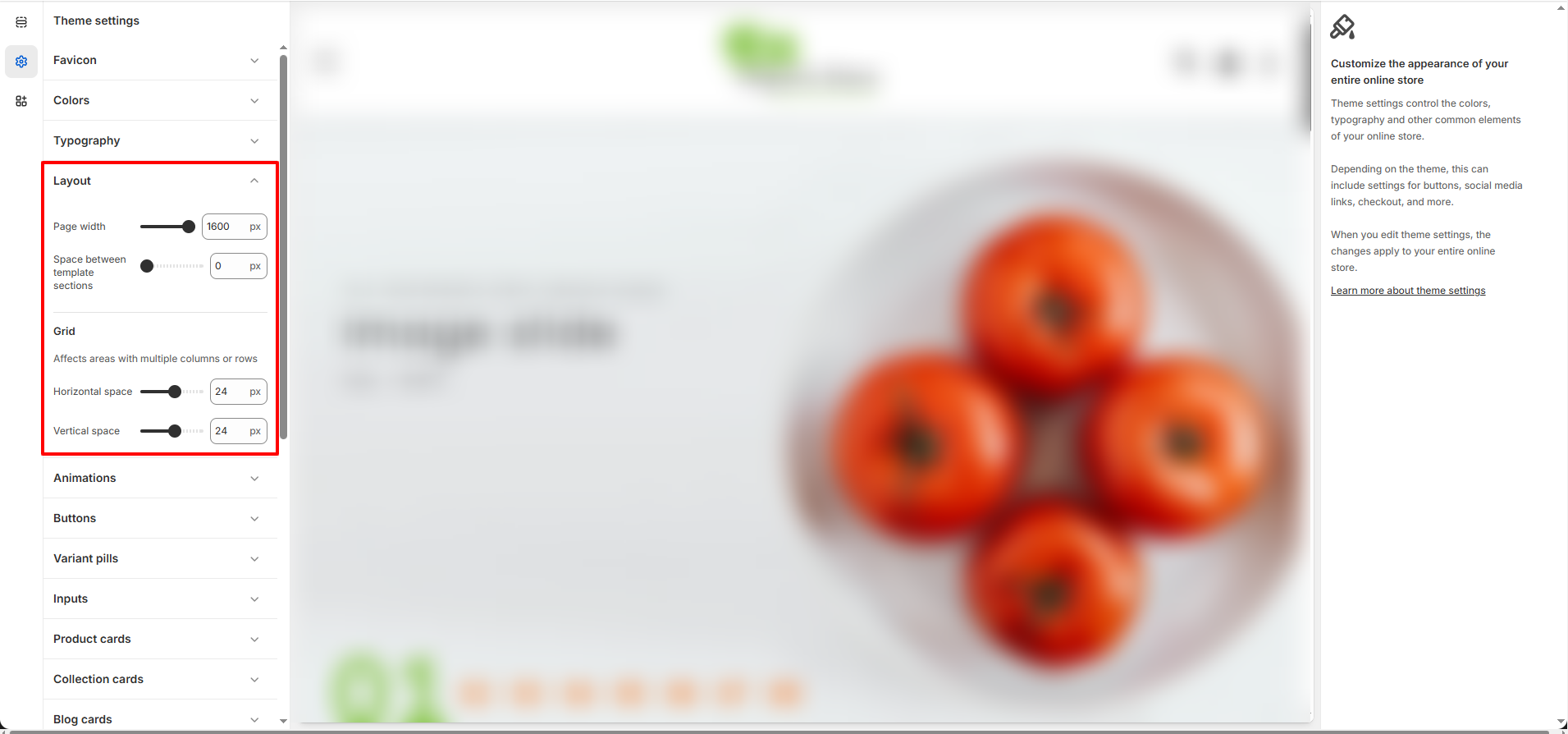
Customize the Layout to Control Your Store�s Overall Structure
To access these settings, go to Online Store >> Themes >> Customize >> Theme Settings >> Layout.
- Page Width � Control the maximum width of your website layout.
- Horizontal Spacing � Adjust the space between elements from left to right.
- Vertical Spacing � Manage the space between sections and elements from top to bottom.
4. Animation Settings
Emoll includes built-in animation options to enhance your store�s interactivity and visual appeal.
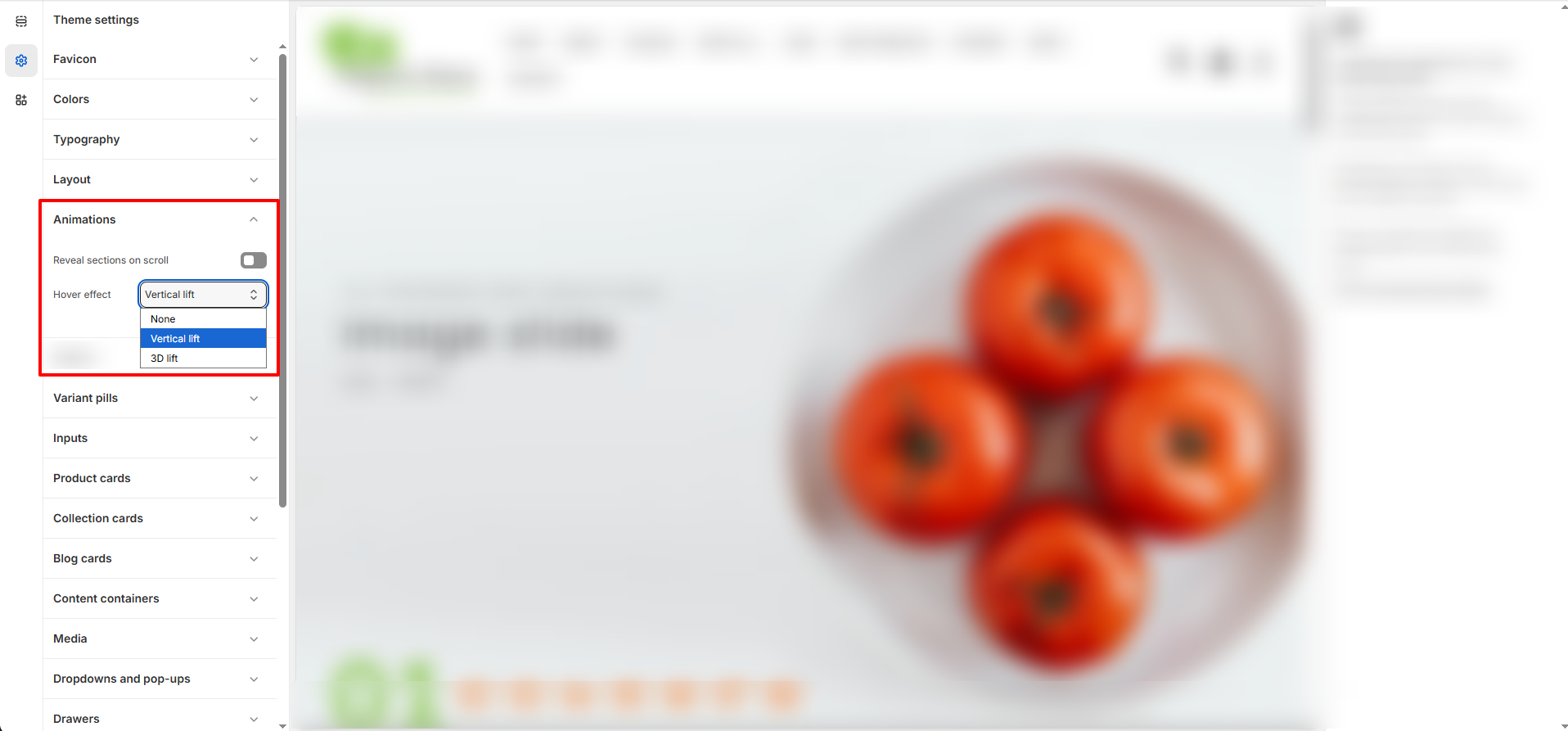
Customize Animation Effects for a More Engaging Experience
To access these settings, go to Online Store >> Themes >> Customize >> Theme Settings >> Animation.
- Reveal Sections on Scroll � Enable smooth reveal animations as customers scroll through the page.
- Hover Effect � Choose how elements respond when hovered over.
- None � Disable hover animations.
- Vertical Lift � Adds a subtle upward movement effect on hover.
- 3D Lift � Applies a more dynamic three-dimensional hover effect.
Note: Hover effects are applied only to cards and buttons within the theme.
5. Product Card Settings
Emoll allows you to fully customize the appearance of product cards across your store.
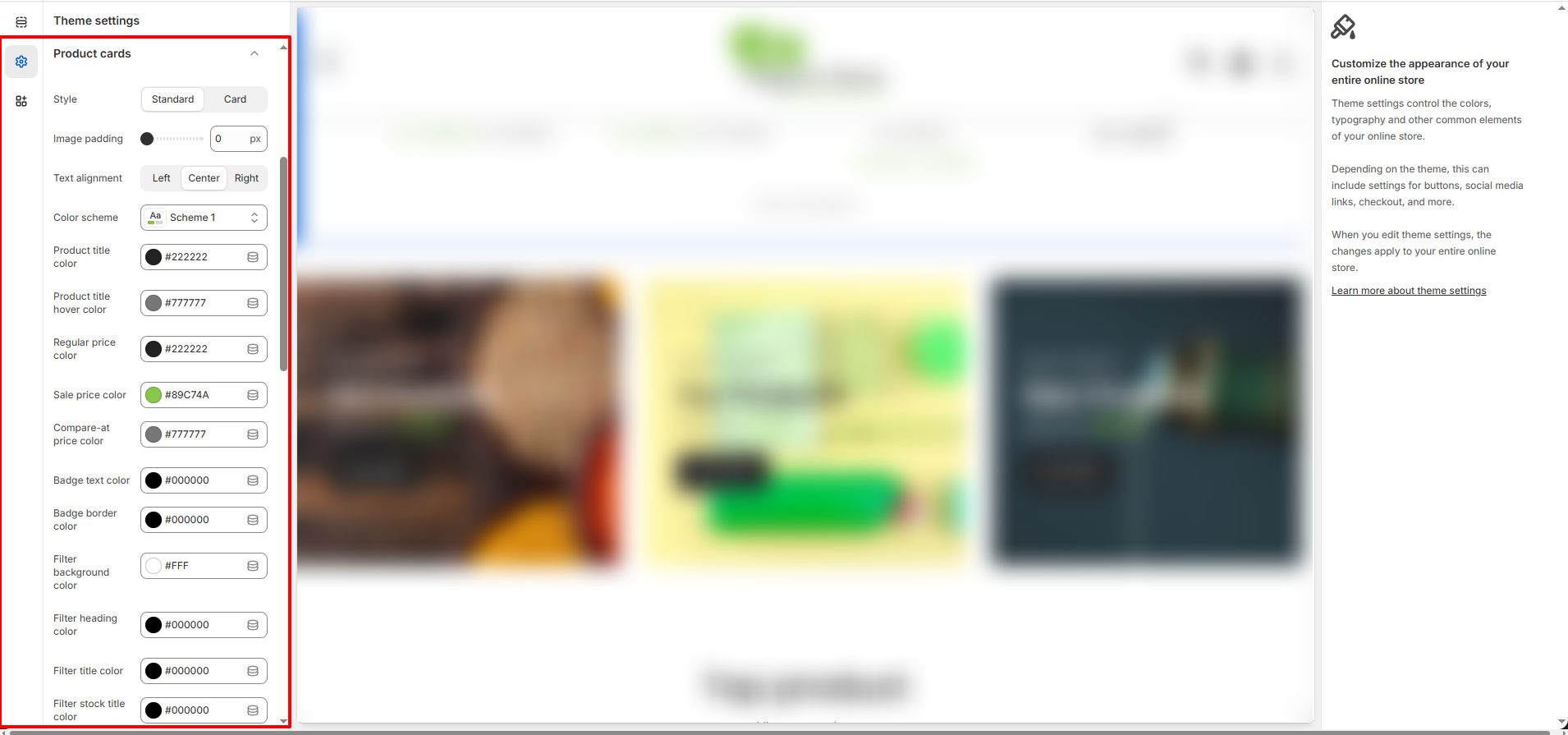
Customize Product Card Design and Styling
To access these settings, go to Online Store >> Themes >> Customize >> Theme Settings >> Product Card.
- Style � Choose between Standard or Card layout style.
- Image Padding � Adjust spacing around product images.
- Text Alignment � Set text alignment to Left, Center, or Right.
- Color Scheme � Select a predefined color scheme.
- Product Title Colors � Configure normal and hover title colors.
- Price Colors � Customize regular price, sale price, and compare-at price colors.
- Badge Colors � Adjust badge text and border colors.
- Filter Colors � Customize filter background and heading colors.
6. Collection Card Settings
Emoll provides flexible customization options for collection cards to match your store�s branding.
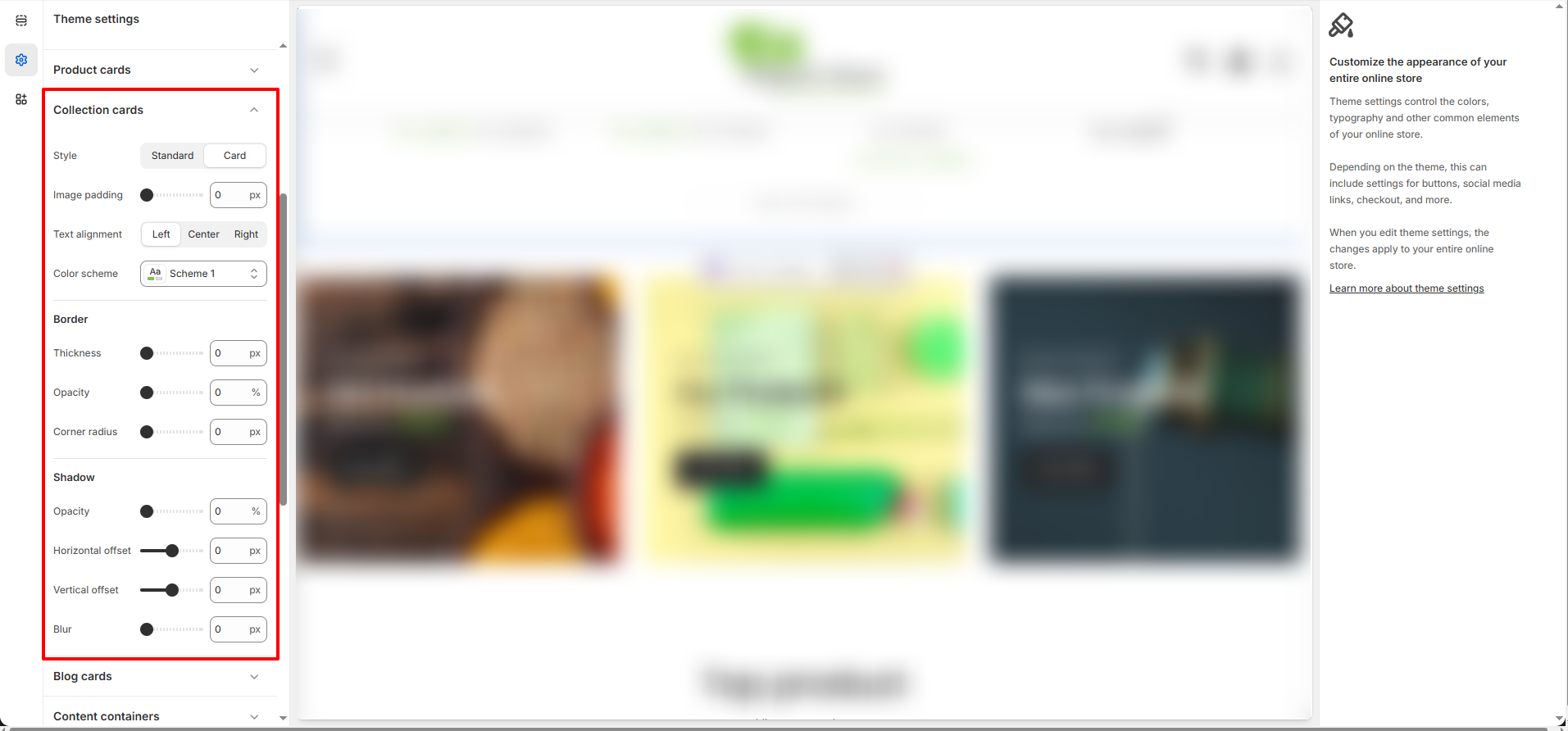
Customize Collection Card Appearance
To access these settings, go to Online Store >> Themes >> Customize >> Theme Settings >> Collection Card.
- Style � Select between Standard or Card layout.
- Image Padding � Control spacing around collection images.
- Text Alignment � Adjust text positioning (Left, Center, Right).
- Color Scheme � Apply a preferred color scheme.
- Border Settings � Modify border thickness, opacity, and corner radius.
- Shadow Settings � Adjust shadow opacity, blur, and position offsets.
7. Brand Information Settings
Emoll allows you to customize the Brand Information section displayed in the footer of your store. This helps you highlight your brand identity, logo, and a short description for your visitors.
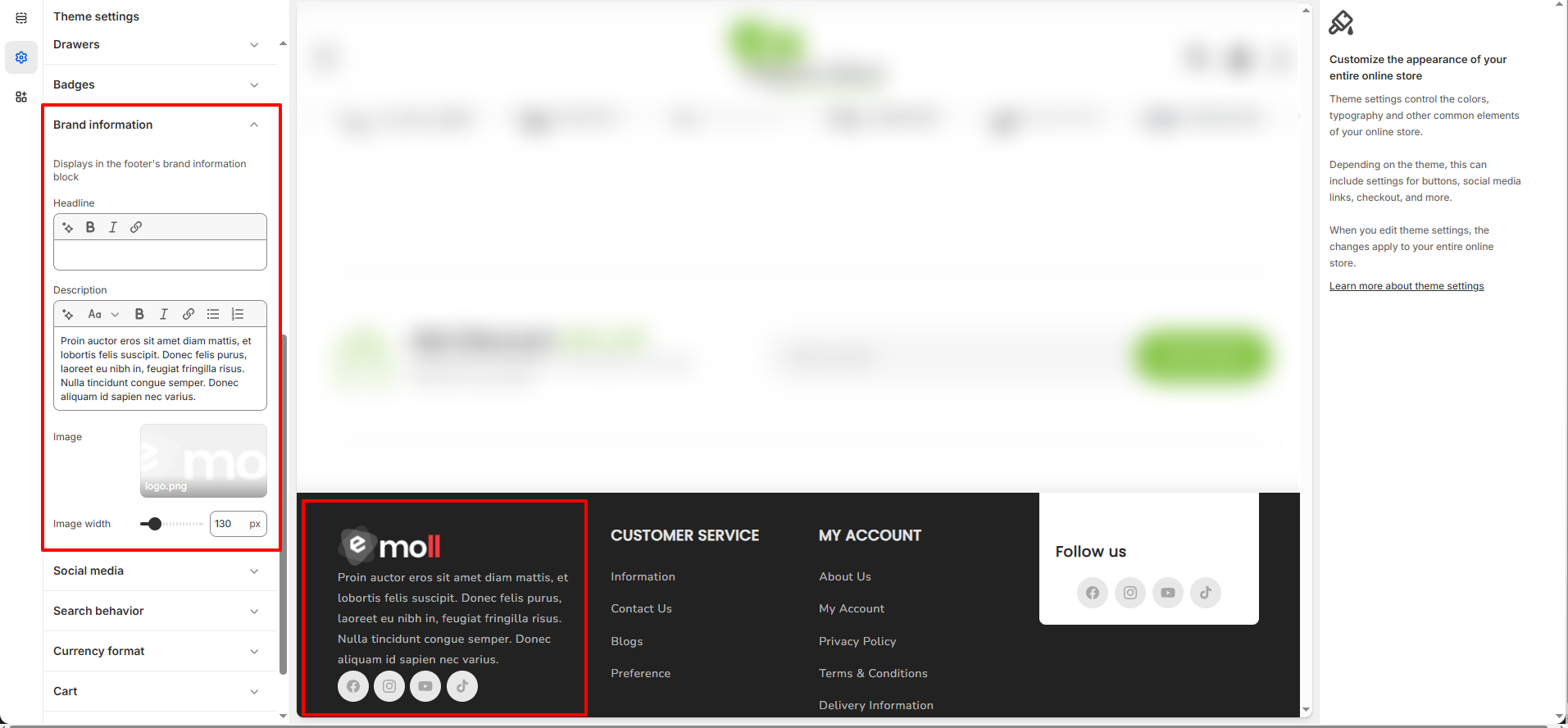
Customize Brand Information
To access these settings, go to Online Store >> Themes >> Customize >> Theme Settings >> Brand Information.
- Headline � Add a custom title to introduce your brand in the footer section.
- Description � Provide a short description about your store, mission, or key highlights.
- Image � Upload your brand logo or a representative image.
- Image Width � Adjust the logo size to fit your footer layout perfectly.
8. Social Media Settings
Emoll allows you to display social media icons in your store and link them to your official social profiles.
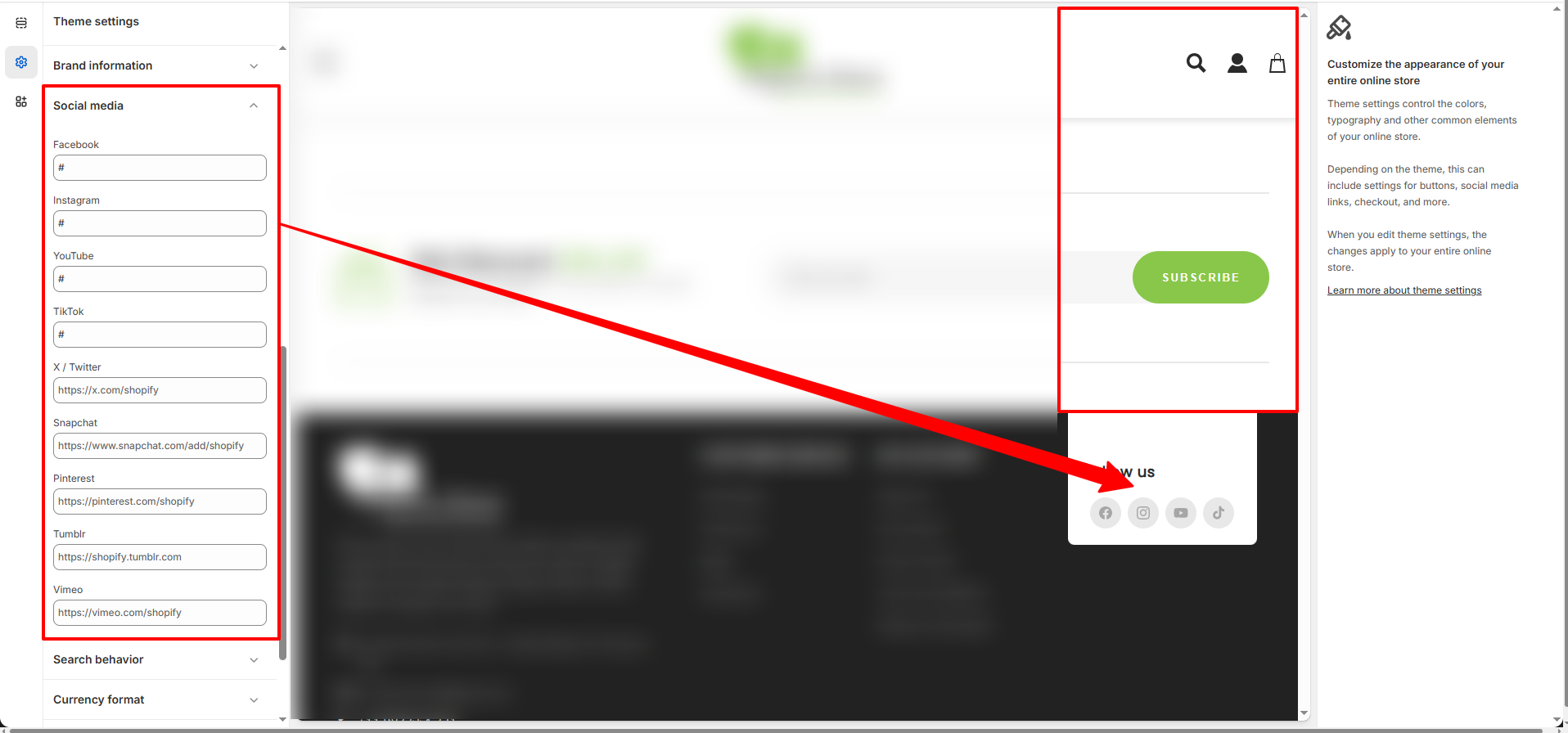
Manage Social Media Icons
To access these settings, go to Online Store >> Themes >> Customize >> Theme Settings >> Social Media.
- Edit Social Links � Add or update the URLs for each social media platform.
- Automatic Display � Icons will only appear on the storefront once a valid link is added.
9. Search Behavior Settings
Emoll provides flexible search behavior options to enhance your store�s search experience and control what information appears in search suggestions.
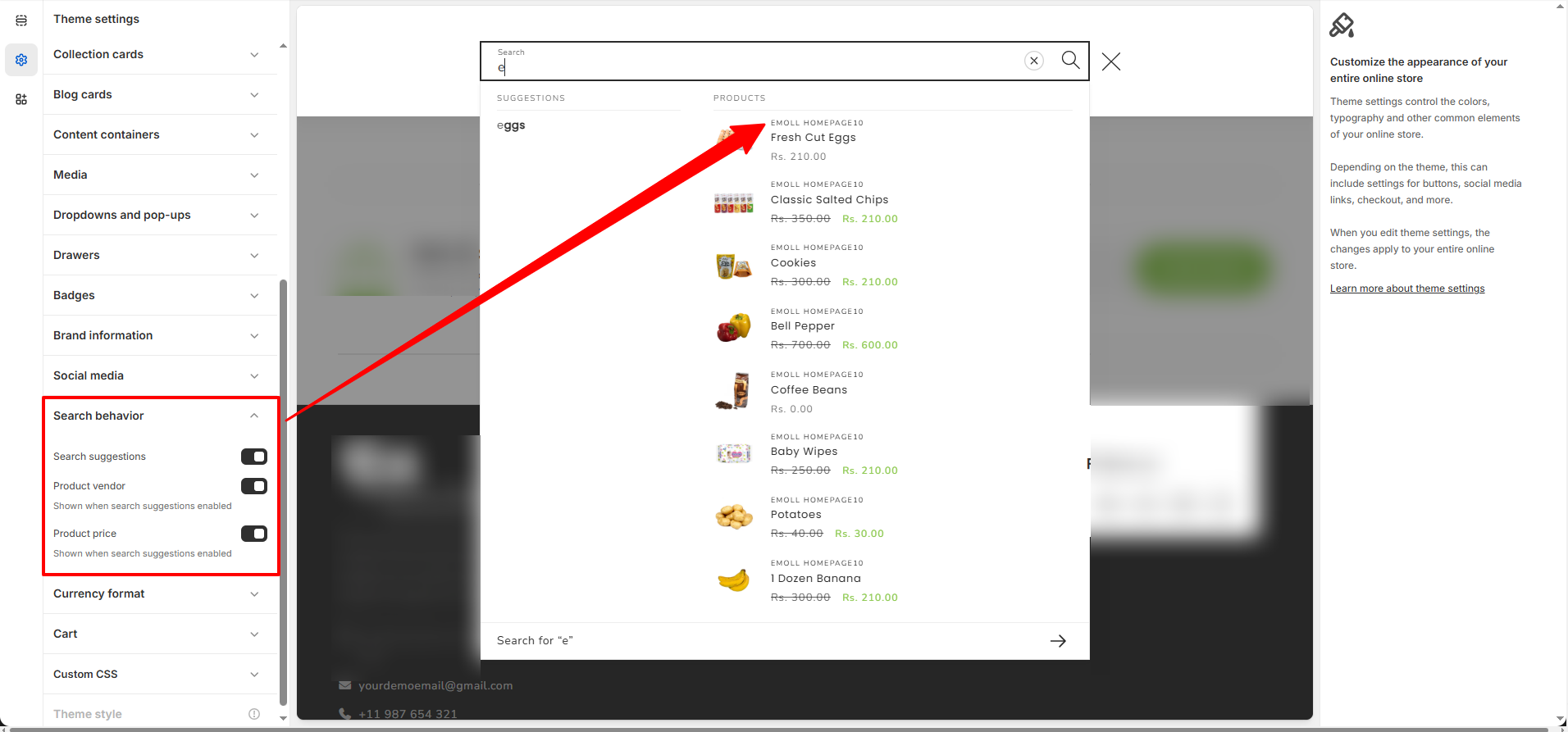
Customize Search Suggestions
To access these settings, go to Online Store >> Themes >> Customize >> Theme Settings >> Search Behavior.
- Search Suggestions � Enable or disable live product suggestions when customers type in the search bar.
- Product Vendor � Display the product vendor name in search suggestions (visible only when suggestions are enabled).
- Product Price � Show product pricing within the search dropdown results.
10. Cart Settings
Emoll allows you to customize how the cart appears and behaves in your store, giving you flexibility to match your preferred shopping experience.
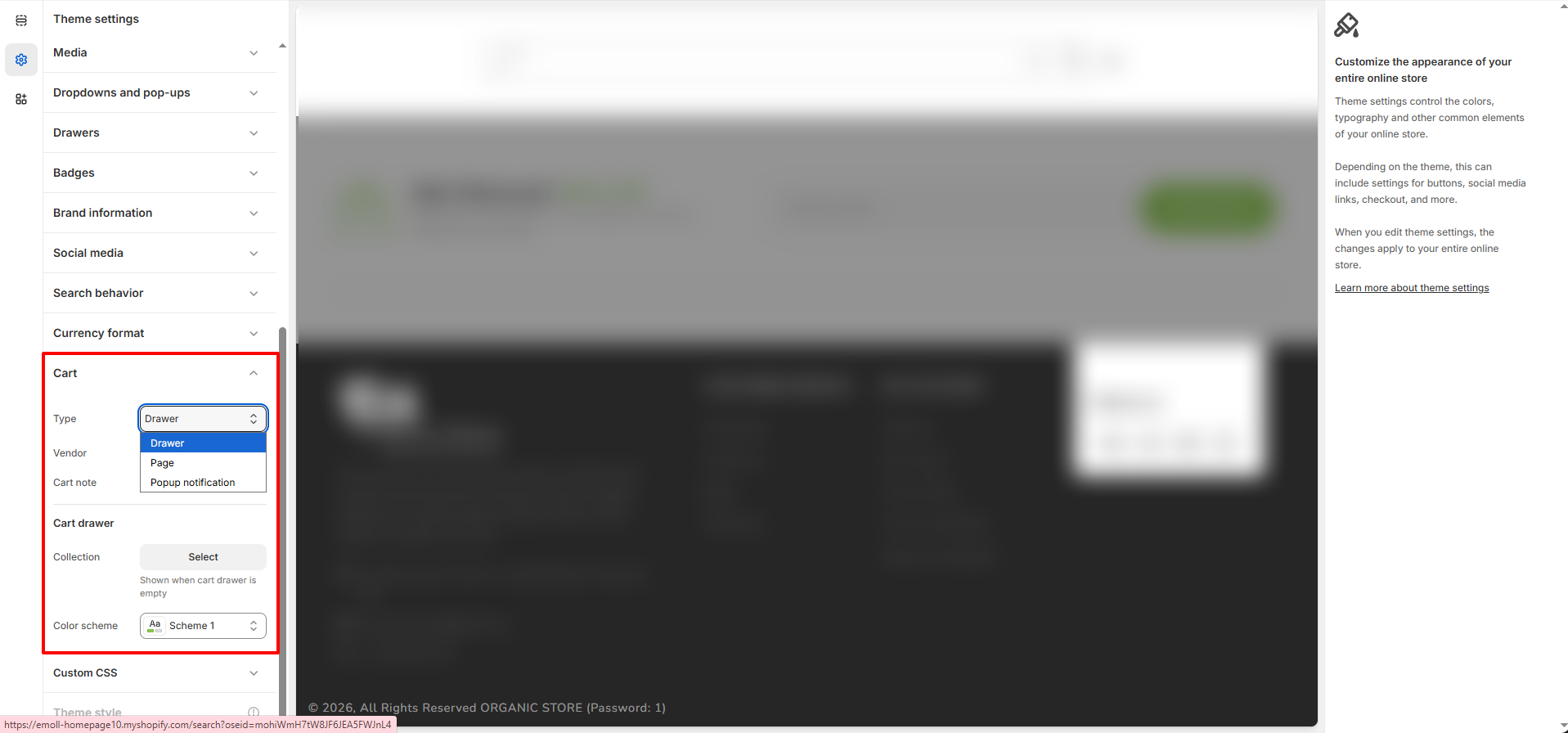
Configure Cart Display
To access these settings, go to Online Store >> Themes >> Customize >> Theme Settings >> Cart.
- Type � Choose how the cart is displayed:
- Drawer � Opens a slide-out cart panel without leaving the current page.
- Page � Redirects customers to a dedicated cart page.
- Popup Notification � Shows a small popup confirmation when a product is added to the cart.
- Vendor � Show or hide the product vendor name inside the cart.
- Cart Note � Allow customers to add special instructions or notes with their order.
- Collection (Cart Drawer) � Select a collection to display recommended products when the cart is empty.
- Color Scheme � Choose a color scheme that matches your store branding for the cart drawer.
10. Favicon Settings
Emoll allows you to upload and customize your store favicon, which appears in the browser tab and helps customers easily identify your website.
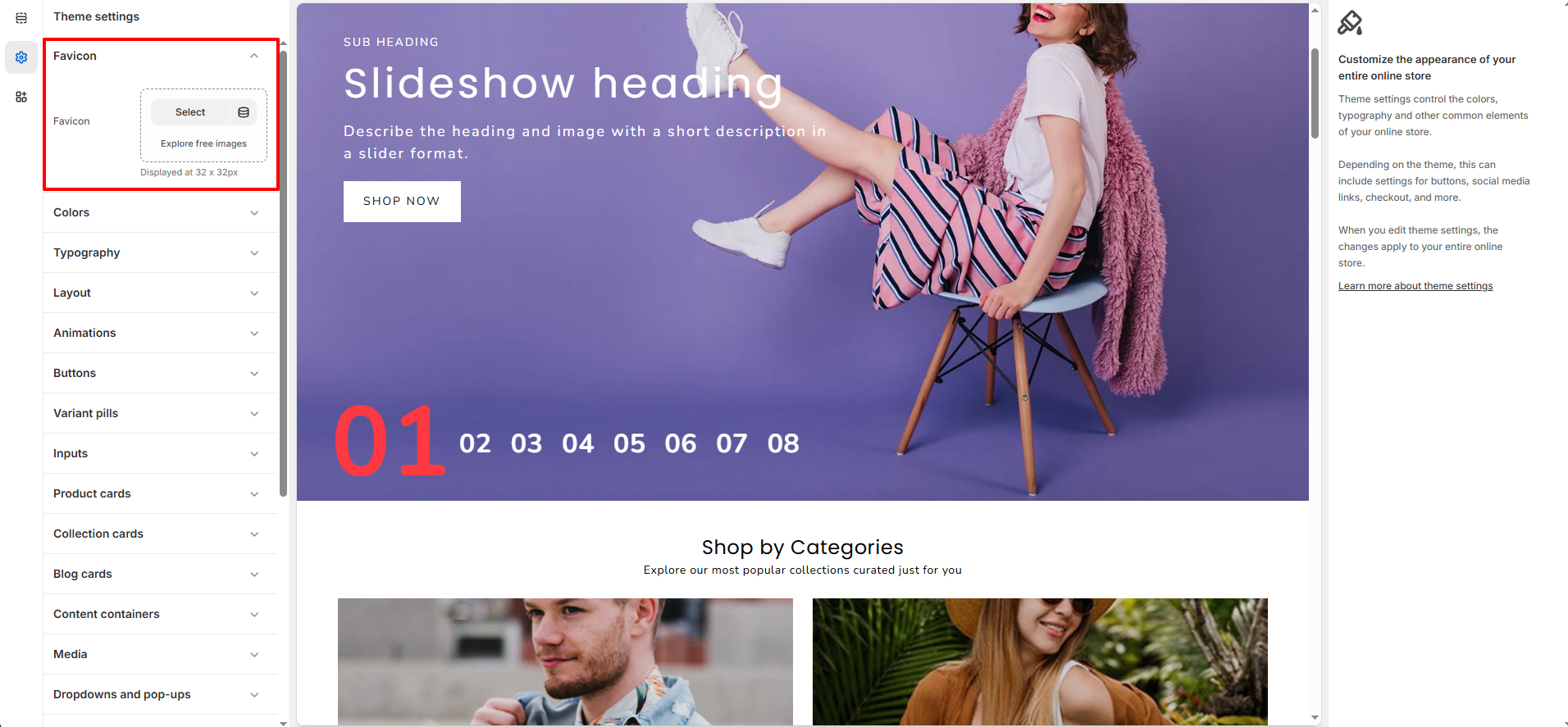
Configure Favicon
To access these settings, go to Online Store >> Themes >> Customize >> Theme Settings >> Favicon.
- Favicon Image � Upload a square image that will be displayed in the browser tab.
- Recommended Size � Use a 32x32px or 48x48px PNG image for best results.
- File Format � PNG format is recommended for better clarity and compatibility.
- Brand Consistency � Use your logo icon or brand symbol to maintain a professional appearance across browser tabs.