Footer Section
Follow these steps to configure and customize the Footer section in your Emoll Shopify theme:
1. Access the Footer Settings
- Log in to your Shopify Admin Dashboard.
- Go to Online Store ? Themes.
- Click Customize on your active theme.
- Scroll down in the left sidebar and click on Footer.
2. Basic Footer Settings
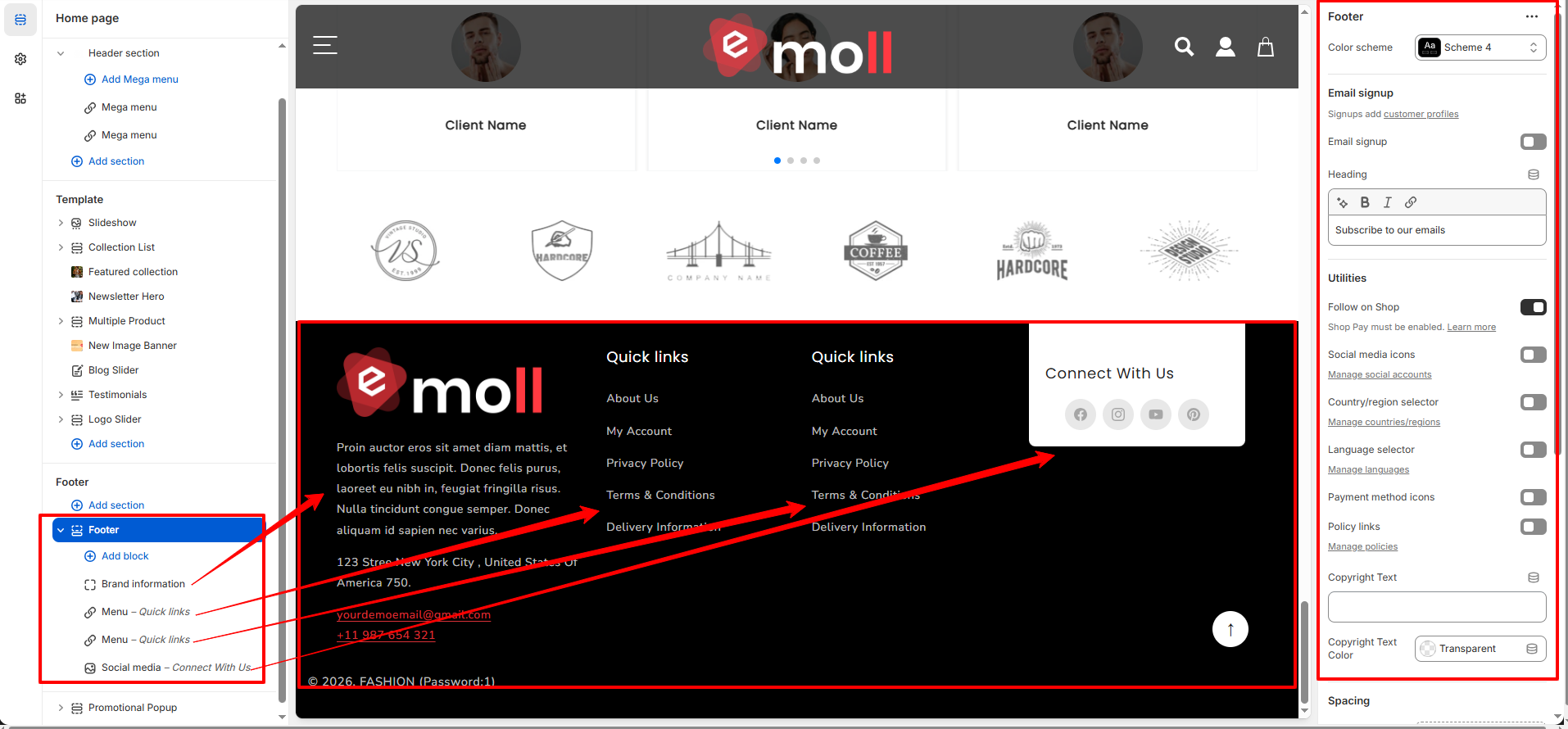
- Color Scheme: Choose the color style for your footer (background, text, links).
- Email Signup: Enable this option to display a newsletter subscription form in the footer.
- Heading: Customize the newsletter heading text (example: "Subscribe to our emails").
- Follow on Shop: Enable Shop app follow button (requires Shopify Shop integration).
- Social Media Icons: Enable or disable social icons in the footer.
- Country/Region Selector: Allow customers to change their country/region.
- Language Selector: Enable language switching (for multi-language stores).
- Payment Method Icons: Show accepted payment method icons in the footer.
- Policy Links: Display store policies (Privacy Policy, Terms, Refund Policy, etc.).
- Copyright Text: Add or edit your custom copyright text.
- Copyright Text Color: Choose the color for copyright text.
3. Available Footer Blocks
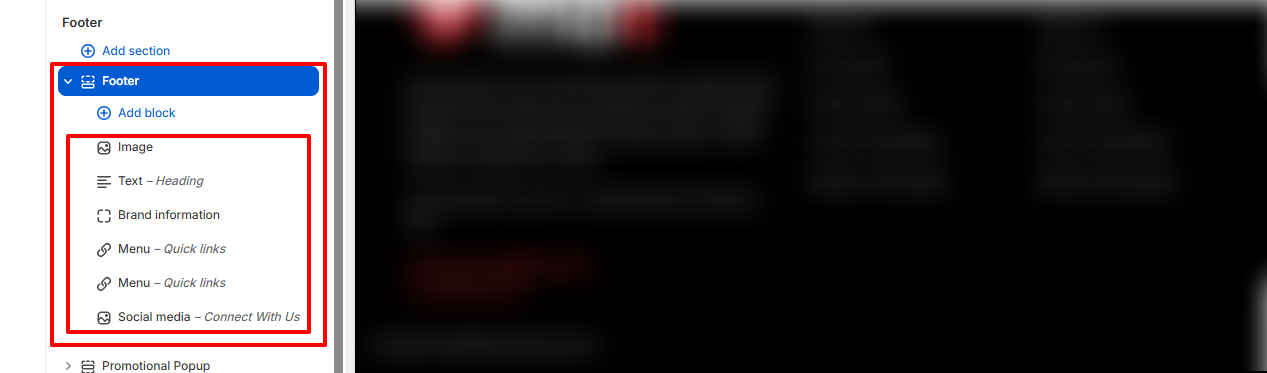
The Footer section supports multiple blocks. You can add, remove, and reorder blocks according to your store requirements. Each block serves a different purpose and can be customized individually.
- Text Block Add a custom heading or text content inside the footer. You can use this for promotional text, short descriptions, or announcements.
- Brand Information Block Display your store logo, brand description, and social media icons. The brand logo and brand name can be configured from Theme Settings ? Brand Information. You can also control logo width,heading and description text inside this block.
- Menu Block Add navigation menus in the footer. Select an existing menu from Navigation and display important links such as About Us, Contact, FAQs, or Policies.
- Social Media Block Show social media icons linked to your social profiles. Social links can be configured from Theme Settings ? Social Media.
-
Image Block
The Image block allows you to display a custom image inside the footer. You can use this block for trust badges, promotional banners, brand visuals, certifications, or additional contact details.