
Slideshow Section
The Slideshow section allows you to display multiple promotional slides with images, headings, text, and call-to-action buttons. It is typically used on the homepage to highlight featured collections, offers, or important announcements.
1. Slideshow Section Settings
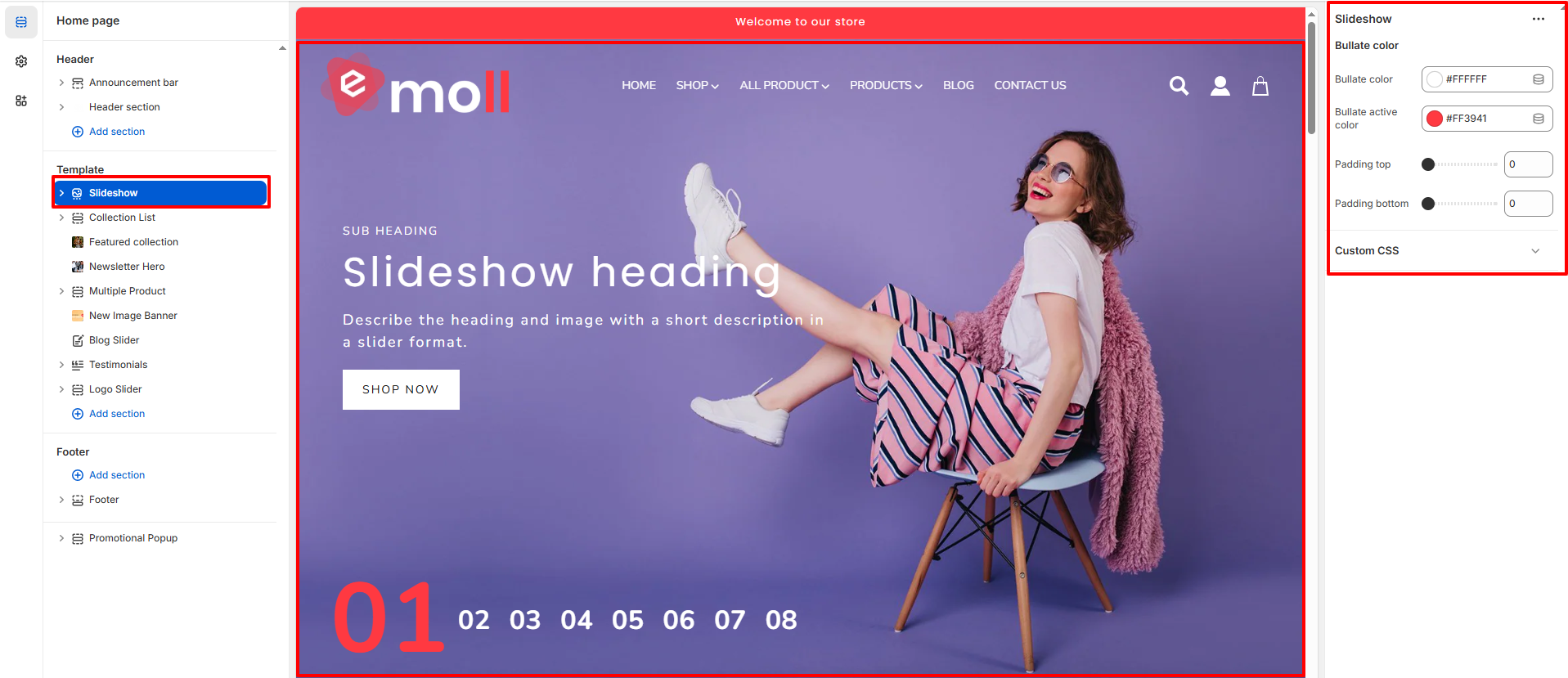
These settings apply to the entire slideshow section.
- Bullet Color: Controls the color of the inactive slide navigation bullets.
- Bullet Active Color: Sets the color of the currently active slide indicator.
2. Slide Block Settings
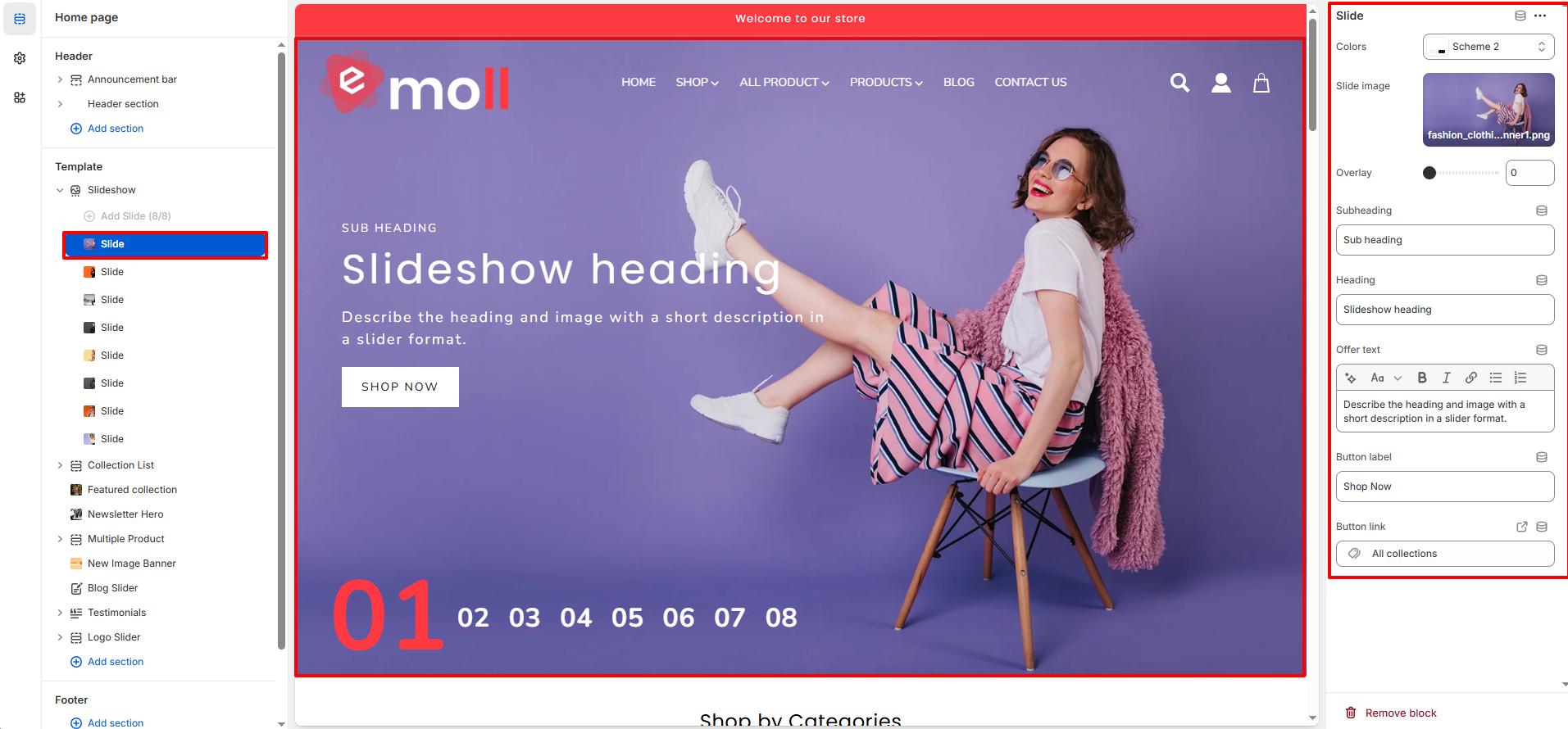
Each slide inside the slideshow has its own customizable settings. Click on any Slide block to modify its content.
- Color Scheme: Select a predefined color scheme for the slide content.
- Slide Image: Upload the main banner image for the slide.
- Overlay: Adjust the overlay opacity to improve text readability over images.
- Subheading: Add a short subtitle displayed above the main heading.
- Heading: Main title text displayed prominently on the slide.
- Offer Text / Description: Add supporting text or promotional details below the heading.
- Button Label: Customize the call-to-action button text (e.g., Shop Now).
- Button Link: Select a collection, product, or page to link the button.
3. Adding & Managing Slides
- Click Add Slide to create a new slide.
- Drag and drop slides to reorder them.
- Click the eye icon to temporarily disable a slide.
- Click Remove Block to delete a slide permanently.
Note: You can add a maximum of 8 slides in the Slideshow section. This limit has been set to maintain optimal performance and ensure smooth transitions.
4. Best Practices
- Use high-resolution images (recommended 1920�800px or larger).
- Keep headings short and impactful.
- Use overlay for better text readability.
- Limit slides to 3�5 for better performance.
- Ensure buttons link to relevant collections or products.