Results Comparison Section
The Results Comparison section allows you to showcase a visual before-and-after product comparison using an interactive image slider. This section is ideal for highlighting product transformations, improvements, or feature comparisons in an engaging way.
1. Results Comparison Section Settings
These settings apply to the entire Results Comparison section.
Color Settings
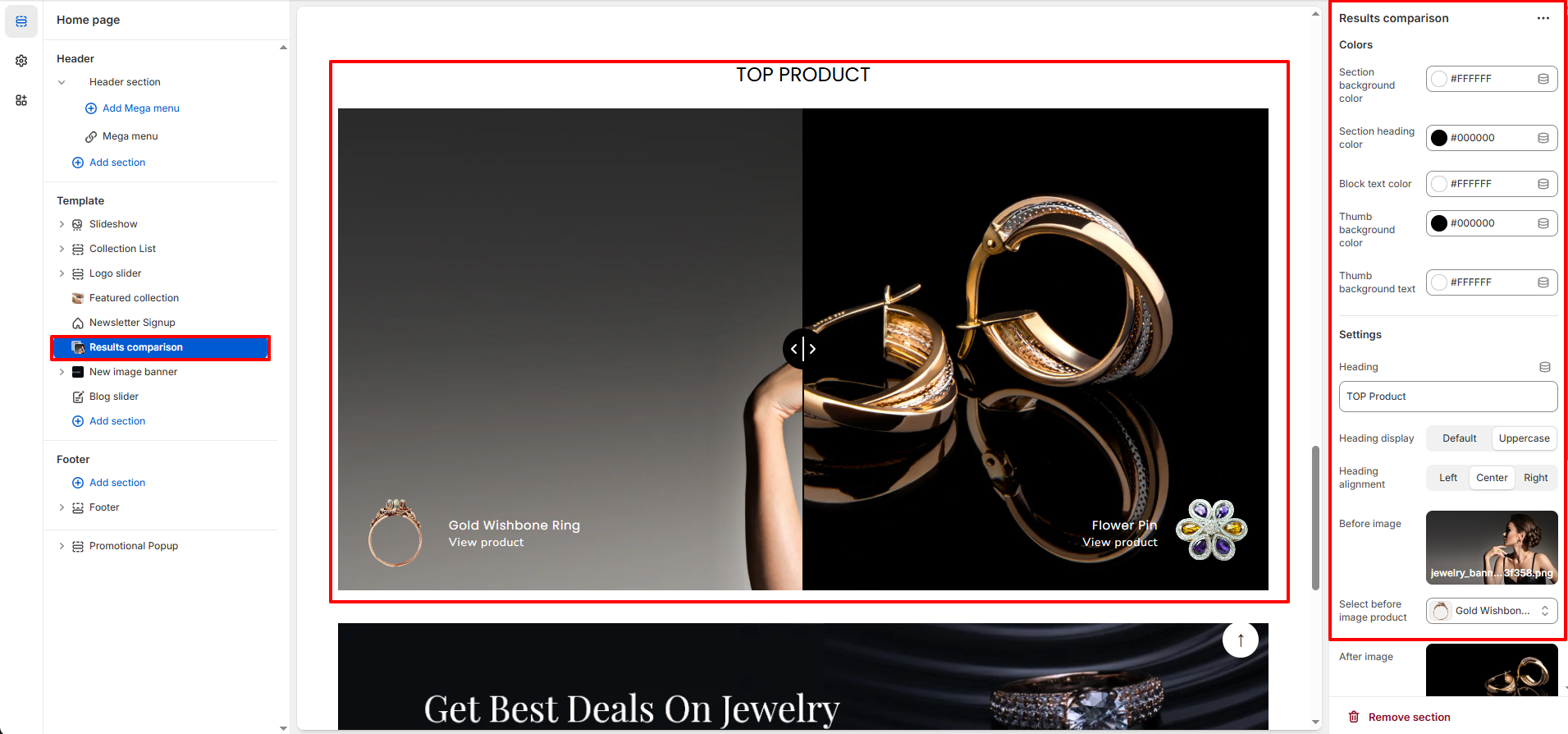
- Section Background Color: Set the background color of the entire section.
- Section Heading Color: Control the color of the main section heading.
- Block Text Color: Adjust the text color displayed inside the comparison blocks.
- Thumb Background Color: Set the background color of the slider handle (drag control).
- Thumb Background Text: Control the icon/text color inside the slider thumb.
Content Settings
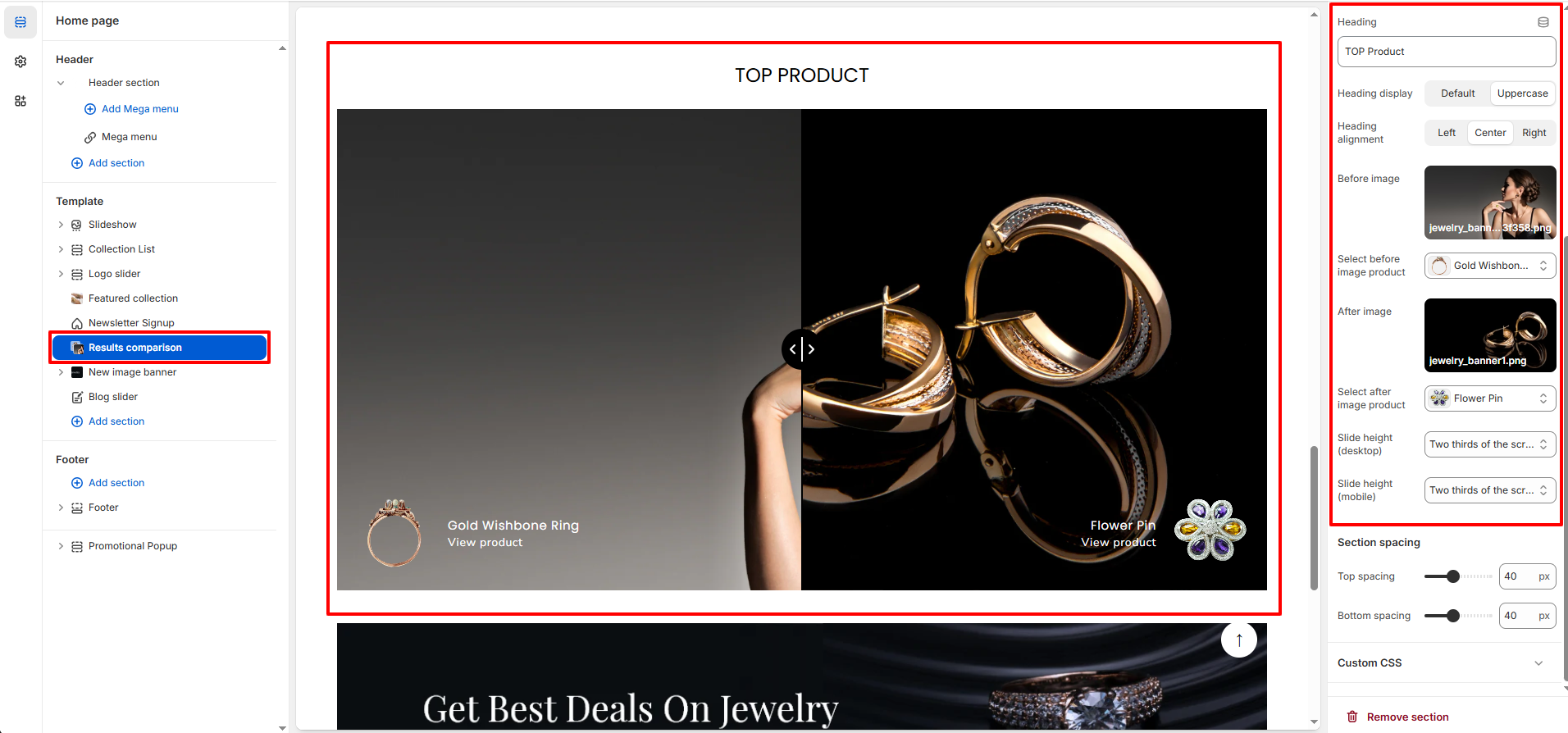
- Heading: Enter the main title of the section (e.g., Top Product).
- Heading Display: Choose how the heading text appears (Default or Uppercase).
- Heading Alignment: Align the heading to Left, Center, or Right.
- Before Image: Upload the image that represents the "before" state.
- Select Before Image Product: Choose the product associated with the before image.
- After Image: Upload the image that represents the "after" state.
- Select After Image Product: Choose the product associated with the after image.
- Slide Height (Desktop): Set the height of the comparison slider for desktop devices.
- Slide Height (Mobile): Set the height of the comparison slider for mobile devices.
Section Spacing
- Top Spacing: Adjust the space above the section.
- Bottom Spacing: Adjust the space below the section.