
Newsletter Hero Section
The Newsletter Hero section allows you to display a large banner with a background image, heading, button, and an integrated newsletter subscription form. It is commonly used on the homepage to promote special offers and grow your email subscriber list.
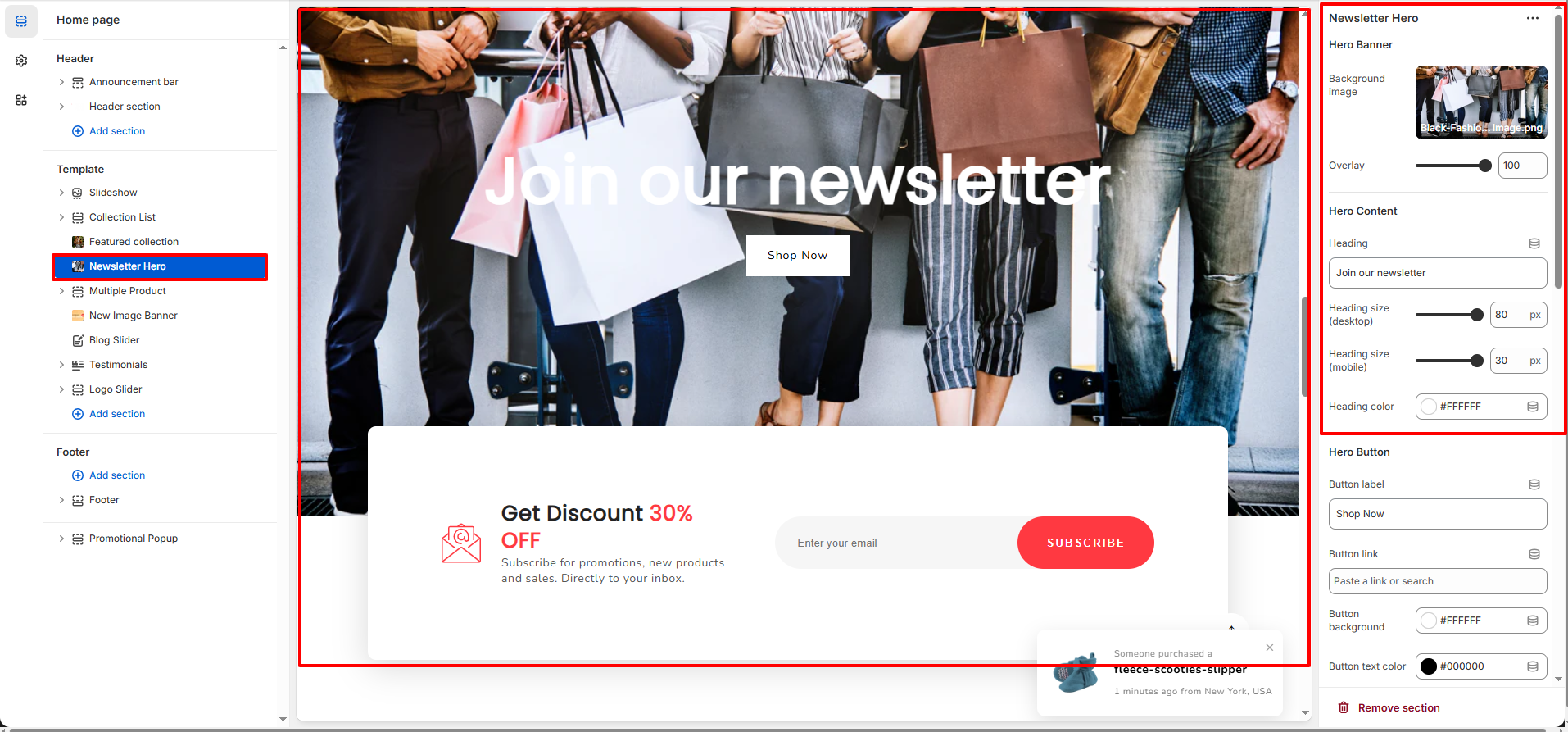
1. Newsletter Banner Settings
These settings control the main banner area of the Newsletter Hero section.
- Background Image: Upload or select the image displayed behind the hero content.
- Overlay: Adjust the overlay opacity to improve text readability over the background image.
- Heading: Add the main hero heading text (e.g., �Join our newsletter�).
- Heading Size (Desktop & Mobile): Control the heading font size separately for desktop and mobile devices.
- Heading Color: Select the text color for the hero heading.
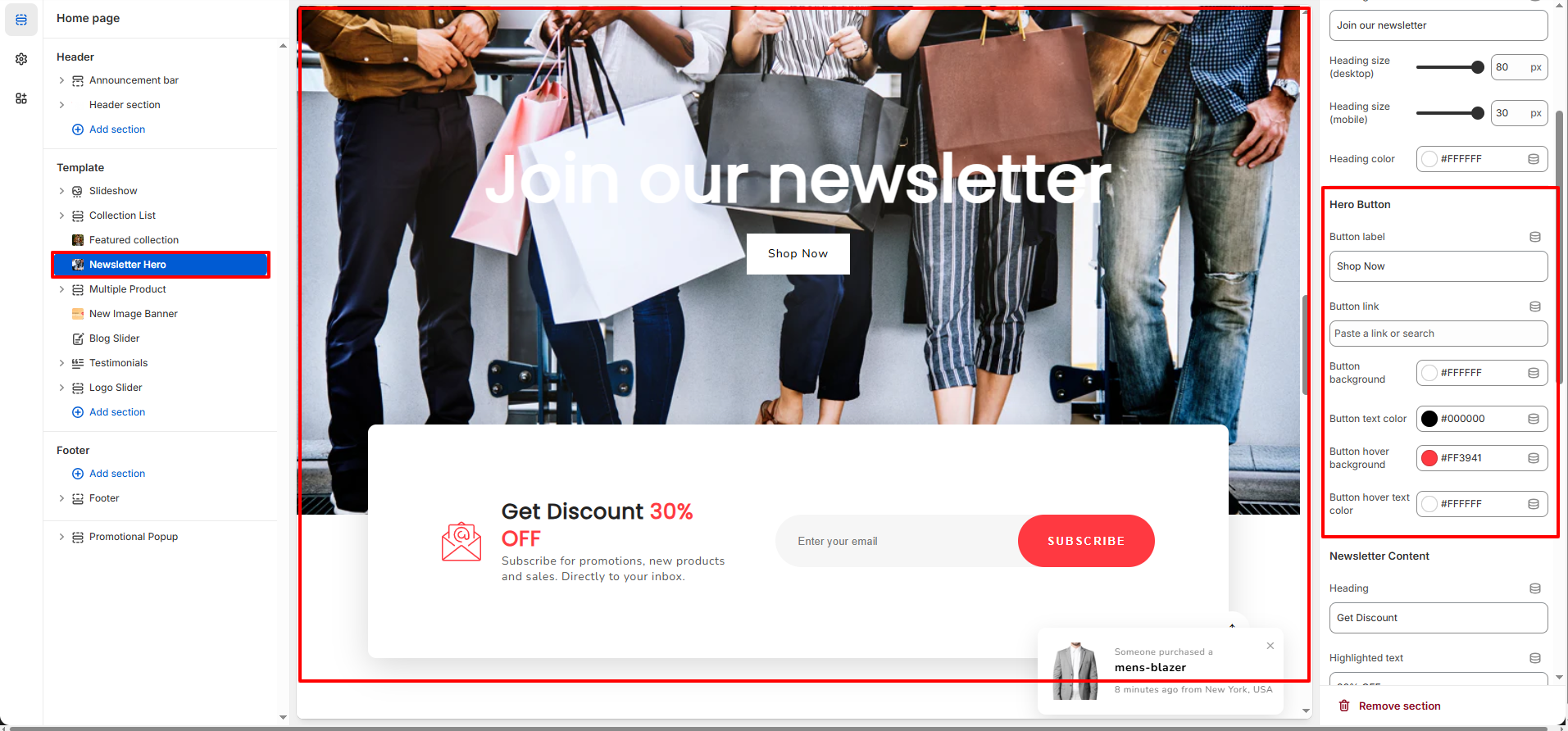
2. Newsletter Button Settings
- Button Label: Set the text displayed on the hero button (e.g., �Shop Now�).
- Button Link: Add a collection, product, page link, or custom URL.
- Button Background Color: Choose the button background color.
- Button Text Color: Select the button text color.
- Button Hover Background: Customize the button background color on hover.
- Button Hover Text Color: Set the text color displayed when hovering over the button.
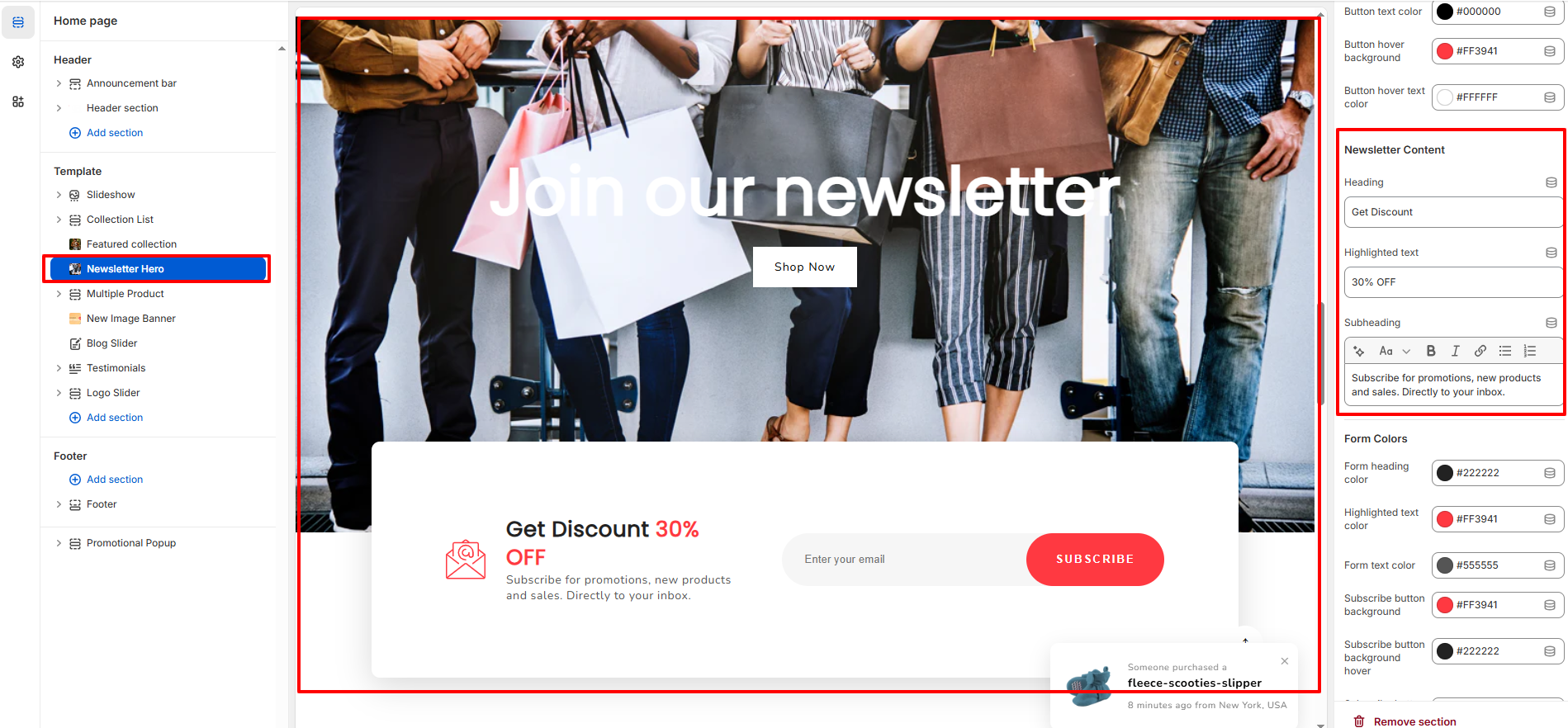
3. Newsletter Content Settings
- Heading: Add the newsletter form heading (e.g., �Get Discount�).
- Highlighted Text: Emphasize key promotional text such as �30% OFF�.
- Subheading: Add supporting text below the heading to describe the offer.
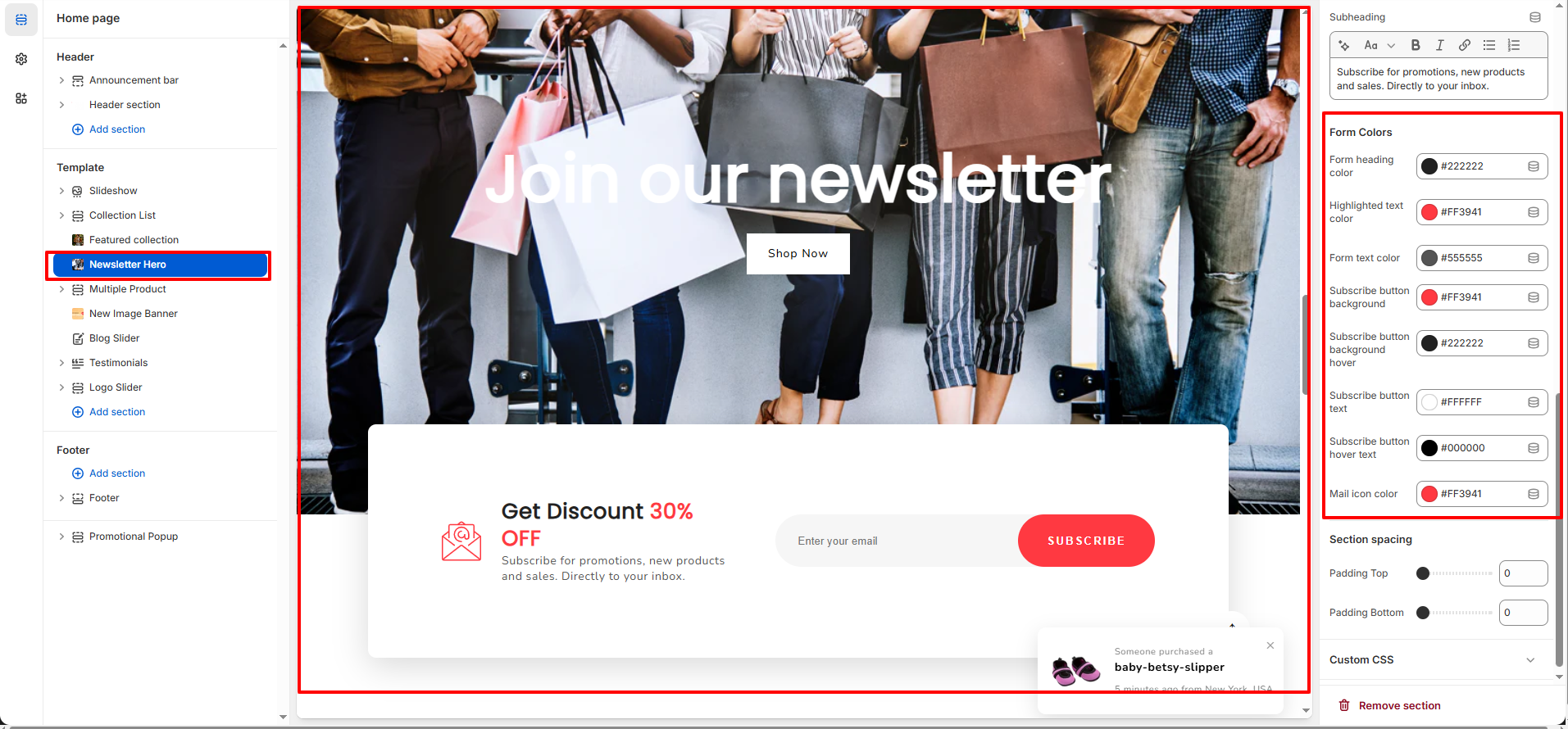
4. Form & Color Settings
- Form Heading Color: Set the color of the newsletter form heading.
- Highlighted Text Color: Choose the color for highlighted promotional text.
- Form Text Color: Adjust the color of the description text.
- Subscribe Button Background: Select the background color of the subscribe button.
- Subscribe Button Background (Hover): Set the background color when hovering over the subscribe button.
- Subscribe Button Text Color: Choose the text color of the subscribe button.
- Subscribe Button Hover Text Color: Define the text color on hover.
- Mail Icon Color: Customize the color of the mail icon displayed in the newsletter form.
6. Best Practices
- Use high-quality lifestyle images to create visual impact.
- Ensure sufficient overlay opacity for text readability.
- Keep promotional text short and clear (e.g., �30% OFF Today�).
- Use contrasting button colors to improve click-through rate.
- Test mobile heading size for proper responsiveness.