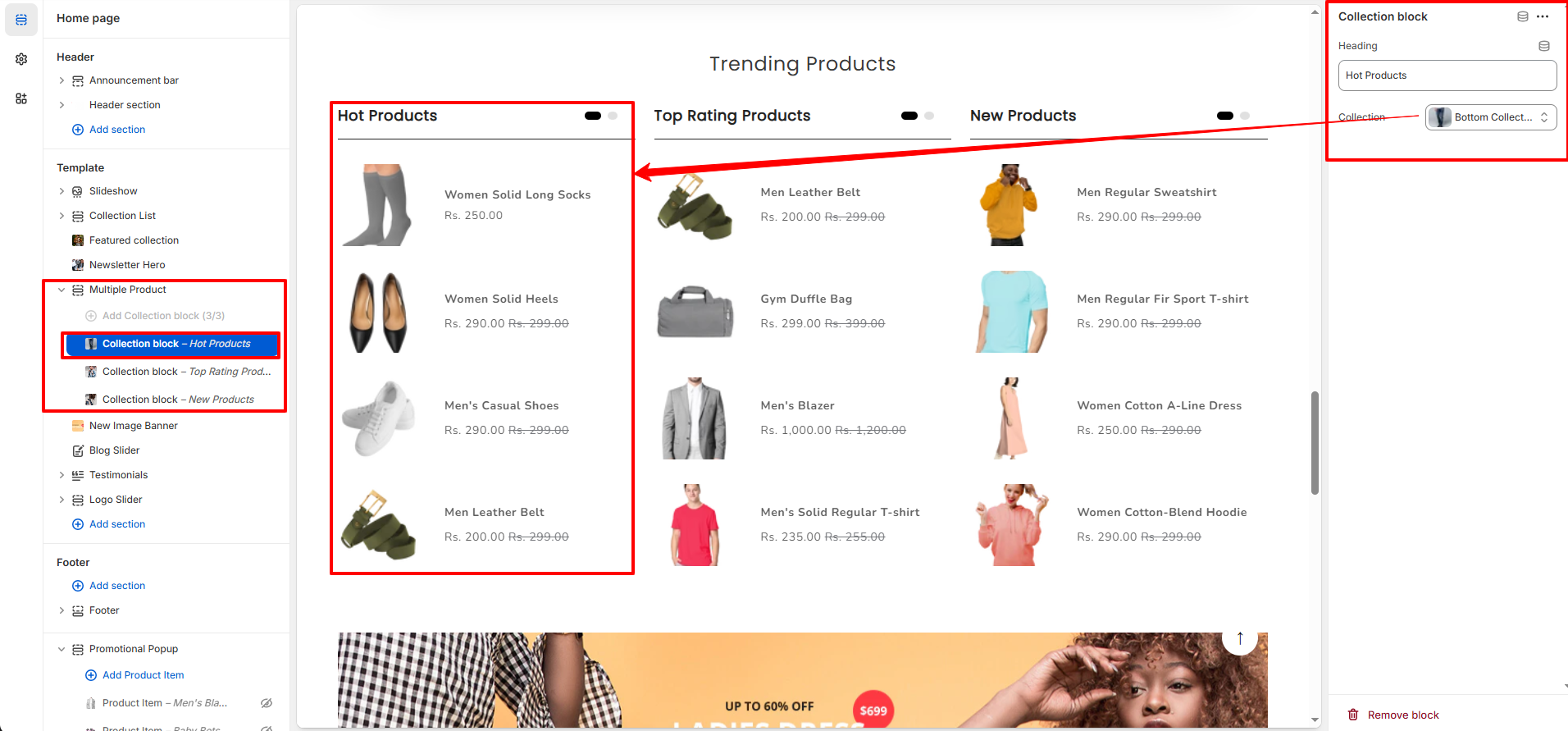
Multiple Product Section
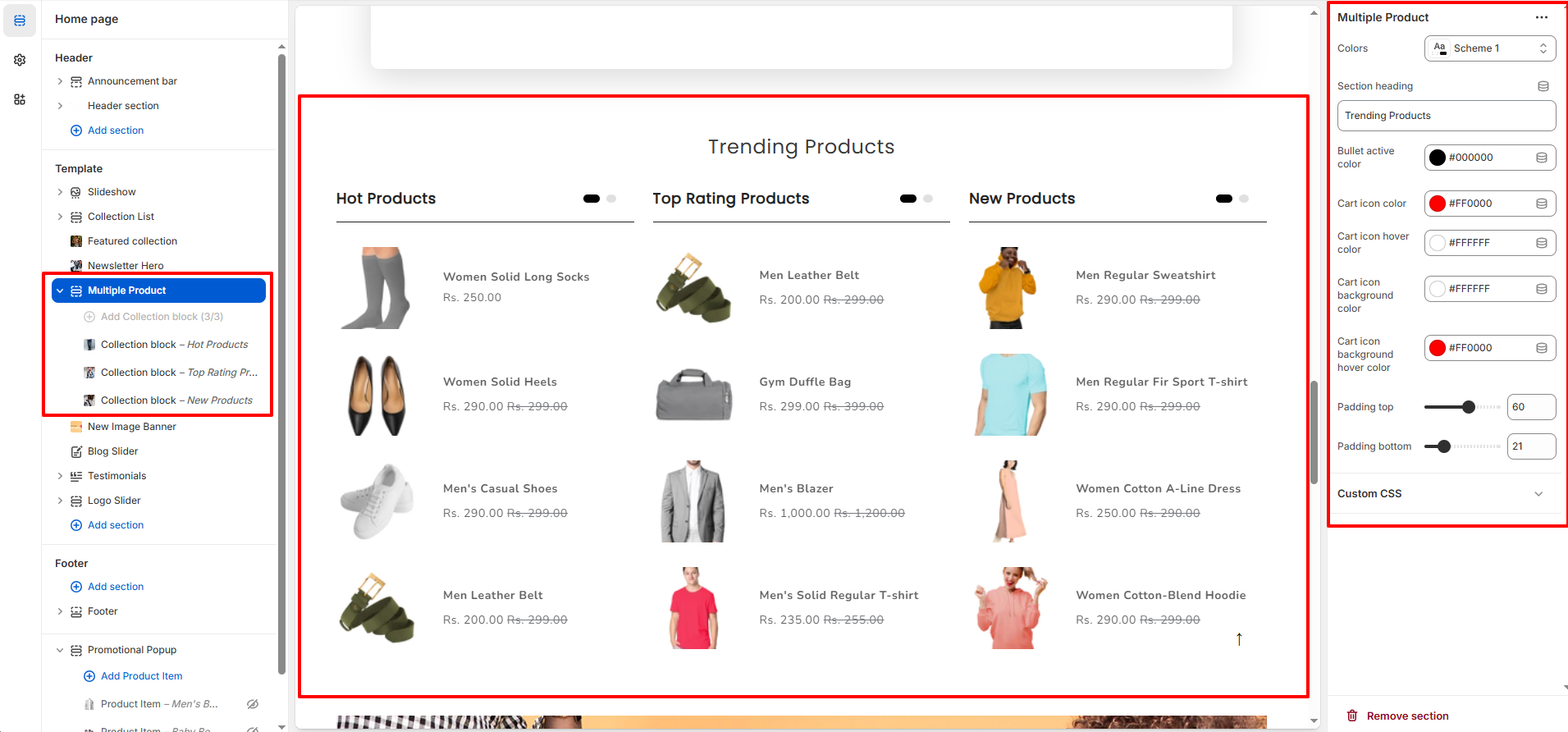
The Multiple Product section allows you to showcase multiple product collections in a single structured layout. It is ideal for displaying categories like Hot Products, Top Rating Products, and New Products side by side to improve product visibility and increase conversions.
1. Multiple Product Section Settings
These settings apply to the entire Multiple Product section.
- Color Scheme: Choose the overall color scheme for the section.
- Section Heading: Set the main title displayed above the collections (e.g., Trending Products).
- Bullet Active Color: Controls the active indicator color for collection sliders.
- Cart Icon Color: Set the default cart icon color.
- Cart Icon Hover Color: Define cart icon color when hovered.
- Cart Icon Background Color: Set background color for the cart icon.
- Cart Icon Background Hover Color: Background color when hovering over the cart icon.
Multiple Product Block Settings
Each Collection Block allows you to display products from a selected collection inside the Multiple Product section. You can add up to three collection blocks and customize them individually.
- Heading: Set the title for the collection block (e.g., Hot Products, Top Rating Products, New Products). This heading appears above the product list.
- Collection: Select the collection you want to display in this block. All products will automatically load from the chosen collection.
Note: For the best layout structure it is recommended to use a maximum of 3 collection blocks.