Image Hotspots
The Image Hotspots section allows you to highlight products directly on an image using interactive spotlight markers. This section is ideal for showcasing featured products, promotional deals, or shoppable look inspiration in a visually engaging way.
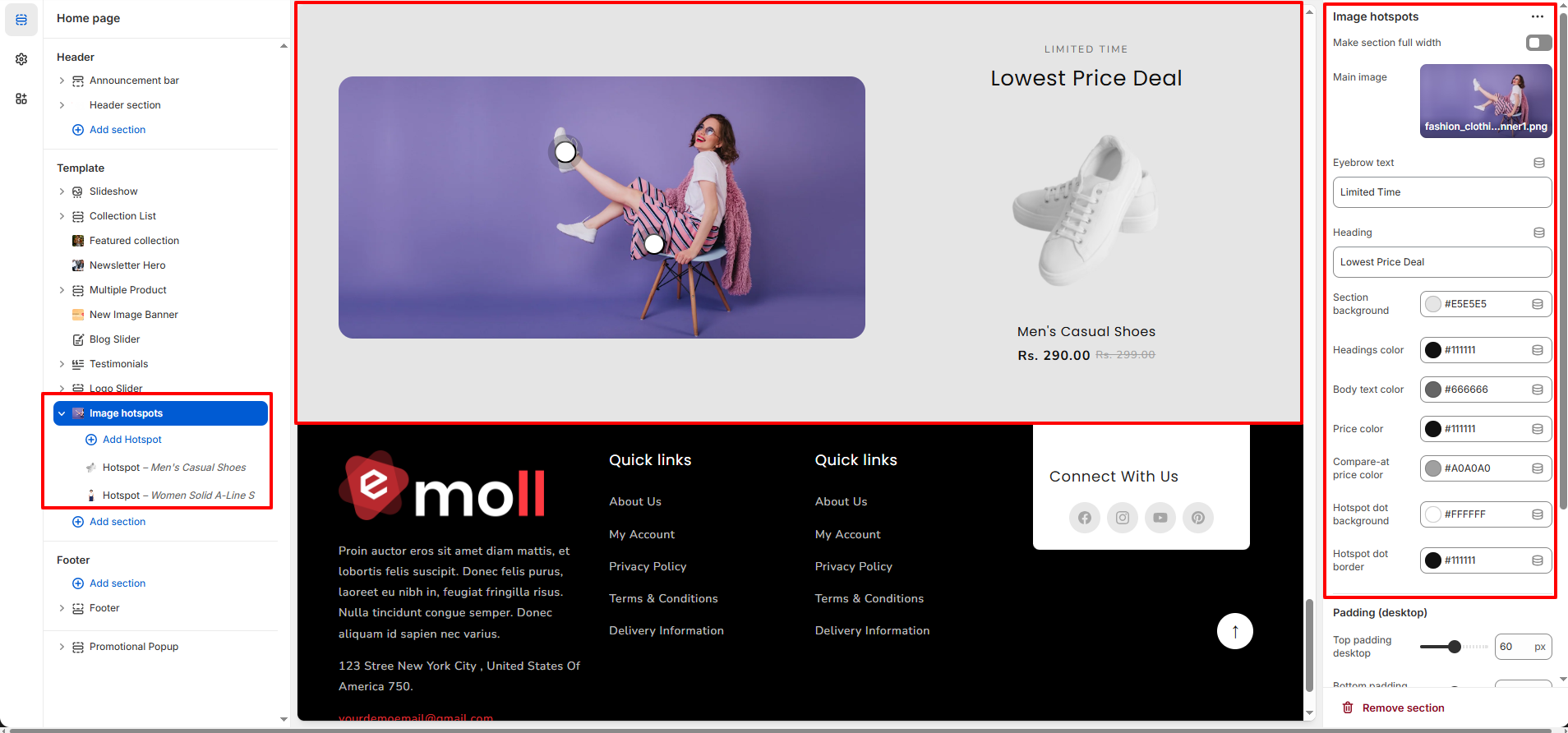
1. Image Hotspots Section Settings
These settings apply to the entire Image Hotspots section.
- Make Section Full Width: Enable this option to stretch the section across the full screen width.
- Main Image: Upload the primary image where hotspots will appear.
- Eyebrow Text: Add a small label above the main heading (e.g., Limited Time).
- Heading: Set the main title of the section (e.g., Lowest Price Deal).
- Section Background: Choose the background color of the section.
- Headings Color: Select the color for headings.
- Body Text Color: Choose the color for product description text.
- Price Color: Set the color of the product price.
- Compare-at Price Color: Choose the color for the original (strikethrough) price.
- Hotspot Dot Background: Set the background color of the spotlight dot.
- Hotspot Dot Border: Select the border color of the spotlight dot.
- Top Padding (Desktop): Adjust spacing above the section.
- Bottom Padding (Desktop): Adjust spacing below the section.
- Top Padding (Mobile): Adjust spacing above the section.
- Bottom Padding (Mobile): Adjust spacing below the section.
2. Block Settings (Hotspot Block)
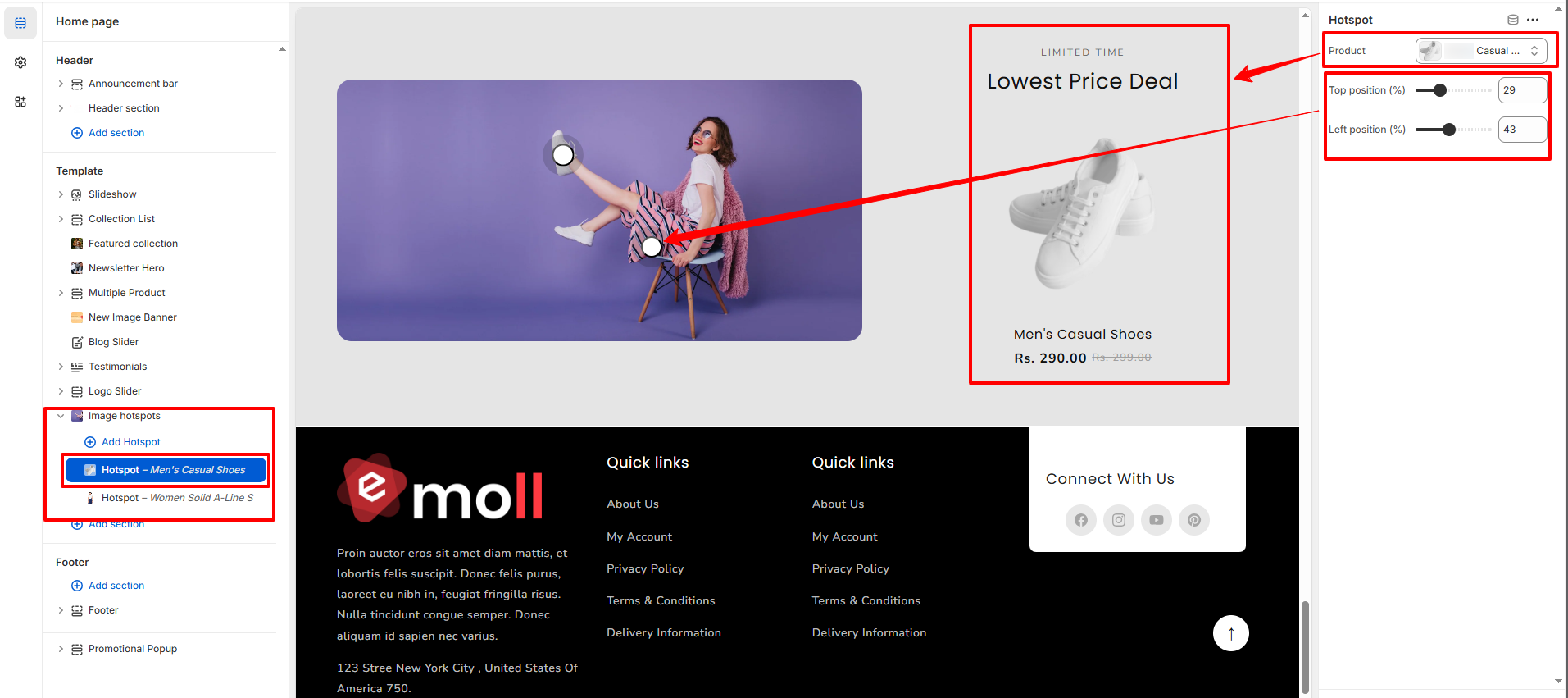
Each Hotspot block represents a single clickable spotlight on the image. You can add multiple hotspots and position them anywhere on the image to highlight different products.
- Product Picker: Select the product you want to display when the hotspot is clicked. The product information (image, title, and price) will be pulled automatically.
- Top Position: Adjust the vertical position (Y-axis) of the hotspot using the range selector. Increasing the value moves the spotlight downward.
- Left Position: Adjust the horizontal position (X-axis) of the hotspot using the range selector. Increasing the value moves the spotlight toward the right.