
Collection List Section
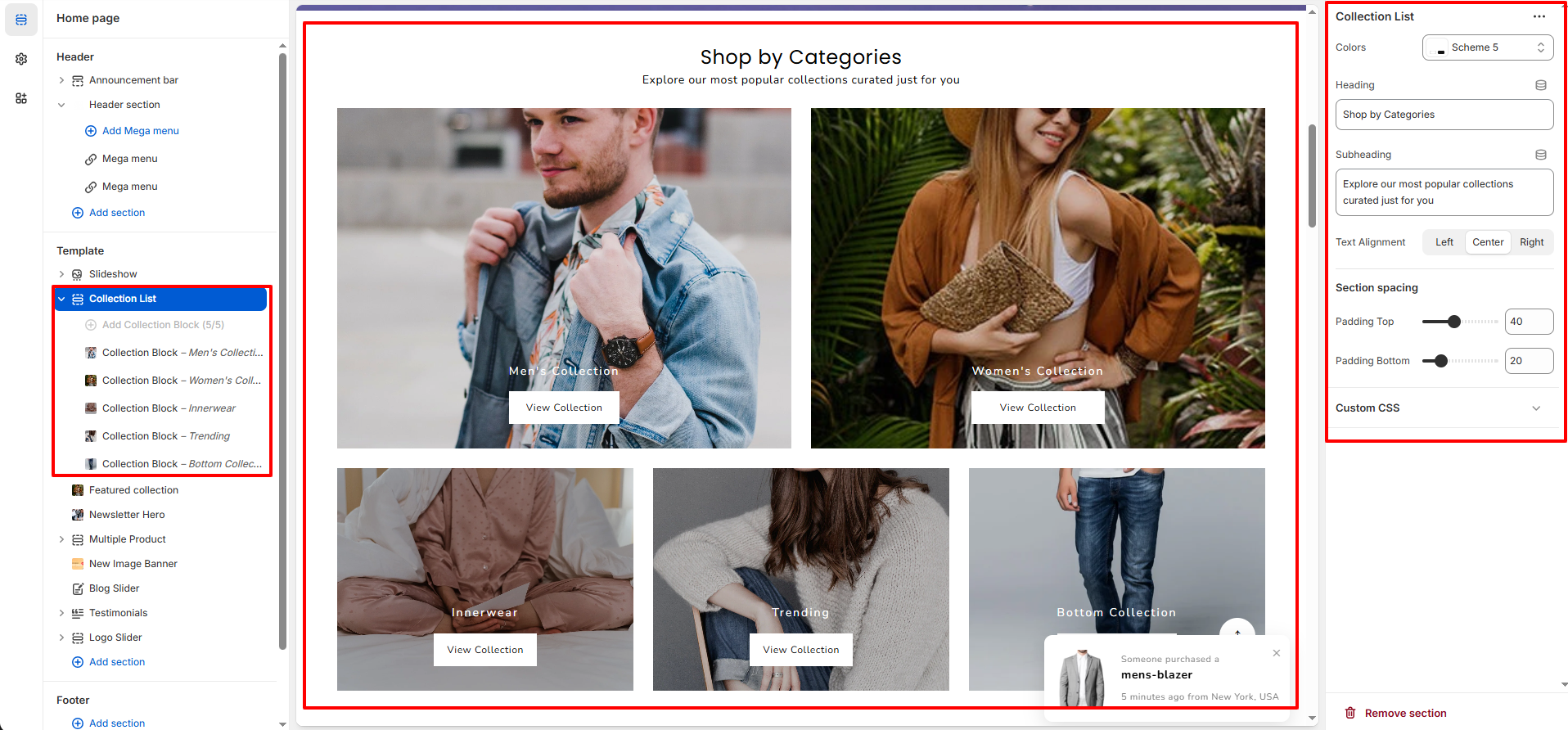
The Collection List section allows you to display multiple product collections in a visually organized grid layout. It is commonly used on the homepage to showcase featured categories and help customers navigate your store easily.
1. Collection List Section Settings
These settings apply to the entire Collection List section.
- Color Scheme: Choose a predefined color scheme for the section background and text.
- Heading: Add the main title for the section (e.g., Shop by Categories).
- Subheading: Add supporting text displayed below the heading.
- Text Alignment: Align the heading and subheading to Left, Center, or Right.
- Section Spacing: Adjust the top and bottom padding to control spacing around the section.
- Custom CSS: Add custom styling if additional design adjustments are needed.
2. Collection Block Settings
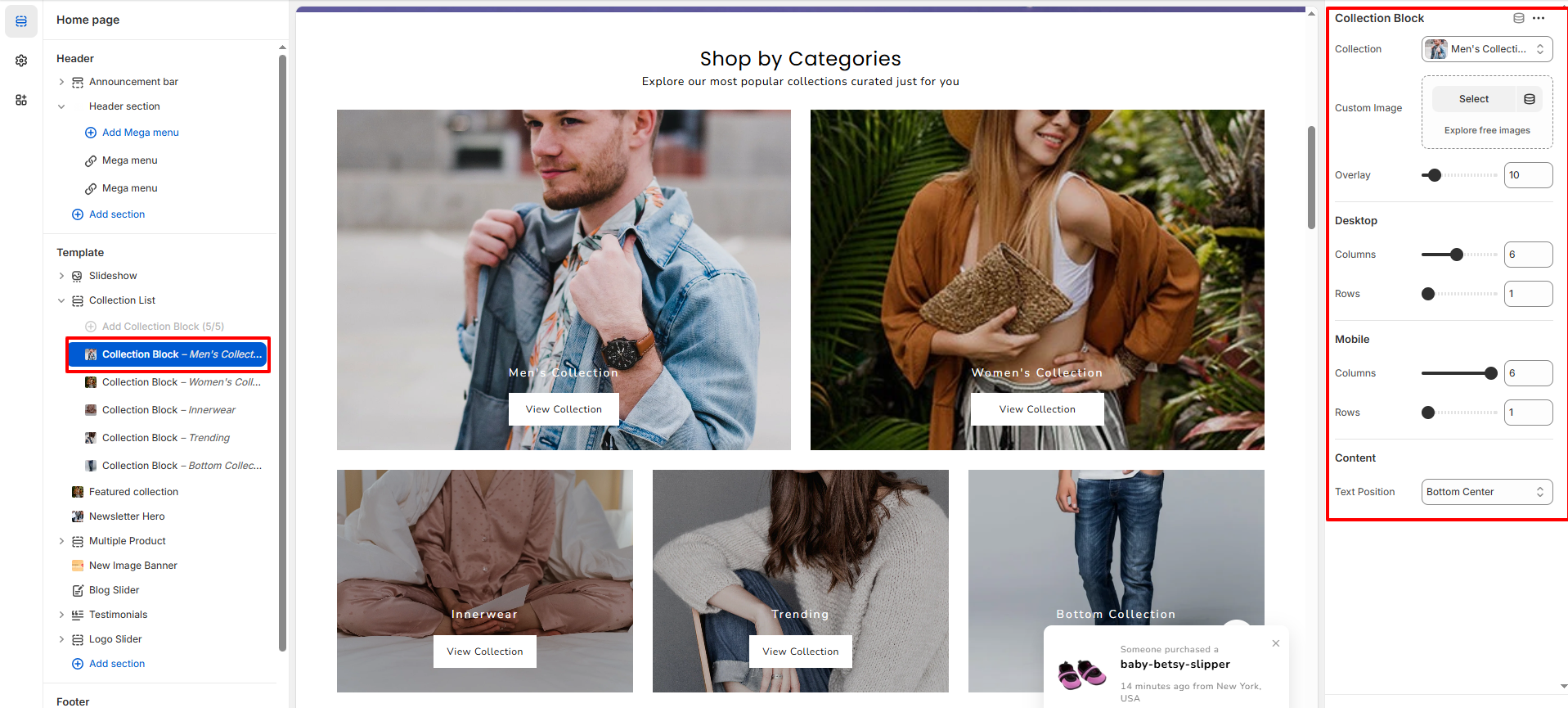
Each collection inside the Collection List section has its own customizable settings. Click on any Collection Block to modify its content.
- Collection: Select the collection you want to display.
- Custom Image: Upload a custom image to override the default collection image.
- Overlay: Adjust the overlay opacity to improve text visibility over the image.
-
Desktop Column Span:
The layout is based on a 12-column grid system.
This setting controls how many of those 12 columns the block will span.
Example:- Span 12 = Full width
- Span 6 = Half width
- Span 4 = One-third width
- Span 3 = One-quarter width
- Desktop Row Span: Controls how many grid rows the block spans vertically. Increasing this value makes the collection taller within the grid layout.
- Mobile Column Span: Controls how many columns the block spans on mobile devices (also based on a 12-column grid system if configured similarly).
- Mobile Row Span: Controls how many rows the block spans vertically on mobile.
- Text Position: Choose where the collection title and button appear on the image (e.g., Bottom Center, Center, Top Left).
3. Adding & Managing Collection Blocks
- Click Add Collection Block to add a new collection.
- Drag and drop blocks to reorder collections.
- Click the eye icon to temporarily hide a collection block.
- Click Remove Block to delete a collection permanently.
Note: You can add multiple collection blocks depending on your layout. For best performance and design consistency, it is recommended to limit the number of visible collections per row.
4. Best Practices
- Use high-quality square or landscape images for better layout consistency.
- Keep collection titles short and clear.
- Use overlay for better text readability on bright images.
- Maintain consistent column settings for balanced design.
- Feature your most popular or seasonal collections first.